 #
#
Who can use PendoPay? #
PendoPay is available for landlords with rental properties in Canada. It is used to collect rent and other rental-related charges by direct bank transfer / pre-authorized debit. The automated payment processing is available only in Canada.
Free trial customers that upgraded to a subscription plan: PendoPay will become available after the 30-day trial period ends.
How much does PendoPay cost? #
To use PendoPay as a landlord, there is a one-time, non-refundable $20 application / ID verification fee. After setup, each PendoPay transaction costs $2.50. If a payment fails because of NSF, stopped payment, closed account, or a similar bank return reason, there is a $20 failed transaction fee charged to the landlord.
The $2.50 transaction fee can be paid by either the landlord or the tenant. If the landlord pays the fee, the rent deposit still arrives in full and the fees are charged separately, with a monthly fee summary emailed afterward. The monthly fee summary is sent on the 5th of the month for the previous month’s fees.
You also need a paid Pendo subscription to use PendoPay. Pendo’s current public pricing starts at $15/month for the Basic plan.
What is required to set up & use PendoPay? #
Landlord requirements #
- A Canadian bank account for payouts
- Valid government-issued identification
- Any additional verification or KYC documents requested by Pendo or its payment provider
- In some cases, proof of property ownership or related supporting documents
Tenant requirements #
- Legal first and last name plus email saved in Pendo
- A Canadian bank account
- A signed PAD authorization
- For rent payments, a valid lease on file in Pendo (not required in Alberta)
- For manual bank setup, a void cheque or direct deposit form may be needed
Important: your Pendo subscription must remain in good standing. If subscription billing fails, future scheduled PendoPay transactions may be placed on hold until the account is brought current.
How do I set up my PendoPay account? #
- Go to Settings and under PendoPay add the bank account you want PendoPay payouts deposited into.
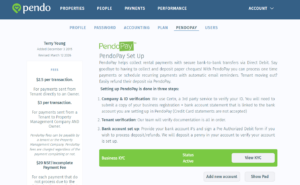
- Complete the one-time verification steps and pay the PendoPay application / verification fee.
- If you connected online, your PendoPay account will be ready to use in real-time. If you opted for a Manual connection, a micro-deposit will be made to your account and you will get an email asking you to verify the amount deposited to your account.
- Once the account is verified, enable PendoPay for the property and you can begin inviting tenants.
How do I set up my tenant in PendoPay? #
- Go to the PendoPay page or the tenant profile and send the tenant a PendoPay setup invitation.
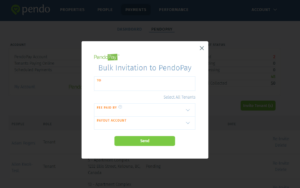
- Choose the tenant and select whether the landlord or the tenant will pay the transaction fee.
- The tenant receives an email invitation and completes the PAD form plus bank connection steps.
- If the tenant connects online, setup can be completed right away. If they connect manually, they may need to verify a micro-deposit before the account becomes active. You can read more on the tenant experience here.
- Once setup is complete, you can create one-time or recurring payments. The invitation expires after 1 week, so tenants who do not complete setup in time will need to be re-invited.
How long does PendoPay take to process payments? #
For brand-new PendoPay users, the initial identification / verification step can take up to 2 business days. After that, once a payment reaches Processing, funds typically take 4–6 business days to move from the tenant’s account to the landlord’s payout account. Weekends and statutory holidays do not count as business days.
Who processes the payment transactions? #
Pendo uses VoPay as its payment processor. It ensures bank-level security. Please note that payments are processed on business days, not on weekends or Canadian statutory holidays.
When is the cutoff time for scheduling a one-time or recurring payment? #
Payments should be created by 5:00 pm PST / PT each day. If a payment is submitted after that cutoff, it will be processed on the next business day.
Can I stop a PendoPay payment? #
Yes, but only before it starts processing. If the payment is still in a state where the Delete button is visible, it can be cancelled. Once the payment is in Processing, it can no longer be edited, deleted, or stopped.
What happens if the payment doesn’t go through? (Non-Sufficient Funds (NSF), stopped payment, etc.) #
If a payment fails, both the landlord and the tenant are notified, and the payment will appear as Failed in the PendoPay dashboard. From there, the landlord can either retry the payment once the funds are available or delete it if the tenant will pay another way.
A $20 failed transaction fee is charged to the landlord for incomplete / returned payments. This is separate from any fee the tenant’s bank may also charge them. If appropriate under your lease and local rules, you can then collect reimbursement from the tenant separately.
To reduce failed payments, Pendo automatically sends tenants three reminders before rent is due: 1 week, 3 days, and 1 day before the payment date.
Can I refund deposits through PendoPay? #
Yes, you can use the Send Refund option to initiate a withdrawal from your payout account to the tenant’s account.
How do I change my PendoPay payout account banking details? #
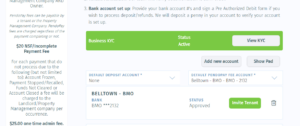
Before changing bank accounts, make sure you do not have payments currently pending to the old account. Add the new account first, complete setup, and then remove the old one if you are no longer using it. If only one payout account is being used for rental-related payments, the scheduled payments will be updated to the new account once setup is complete.
How do I change a tenant’s banking details in PendoPay? #
Go to the tenant’s profile on the People page, click Change in the PendoPay section, and re-invite the tenant to complete setup with the new banking details. Once completed, the new banking information replaces the old one.