
For tenants.
Your landlord sent you a lease to sign through Pendo, the software they use to run the property. The email comes on their behalf and the signing happens on a Pendo page. You may not have heard of us before, and that is normal.
There is nothing to install and no account to create. It usually takes a few minutes.
Signing, step by step #
- Open the link in your email. The email names your landlord and the property you are renting. Click the signing button in it and the lease opens in your browser as a PDF, with a Sign your lease panel beside it. On a phone the panel is a bar at the bottom of the screen.
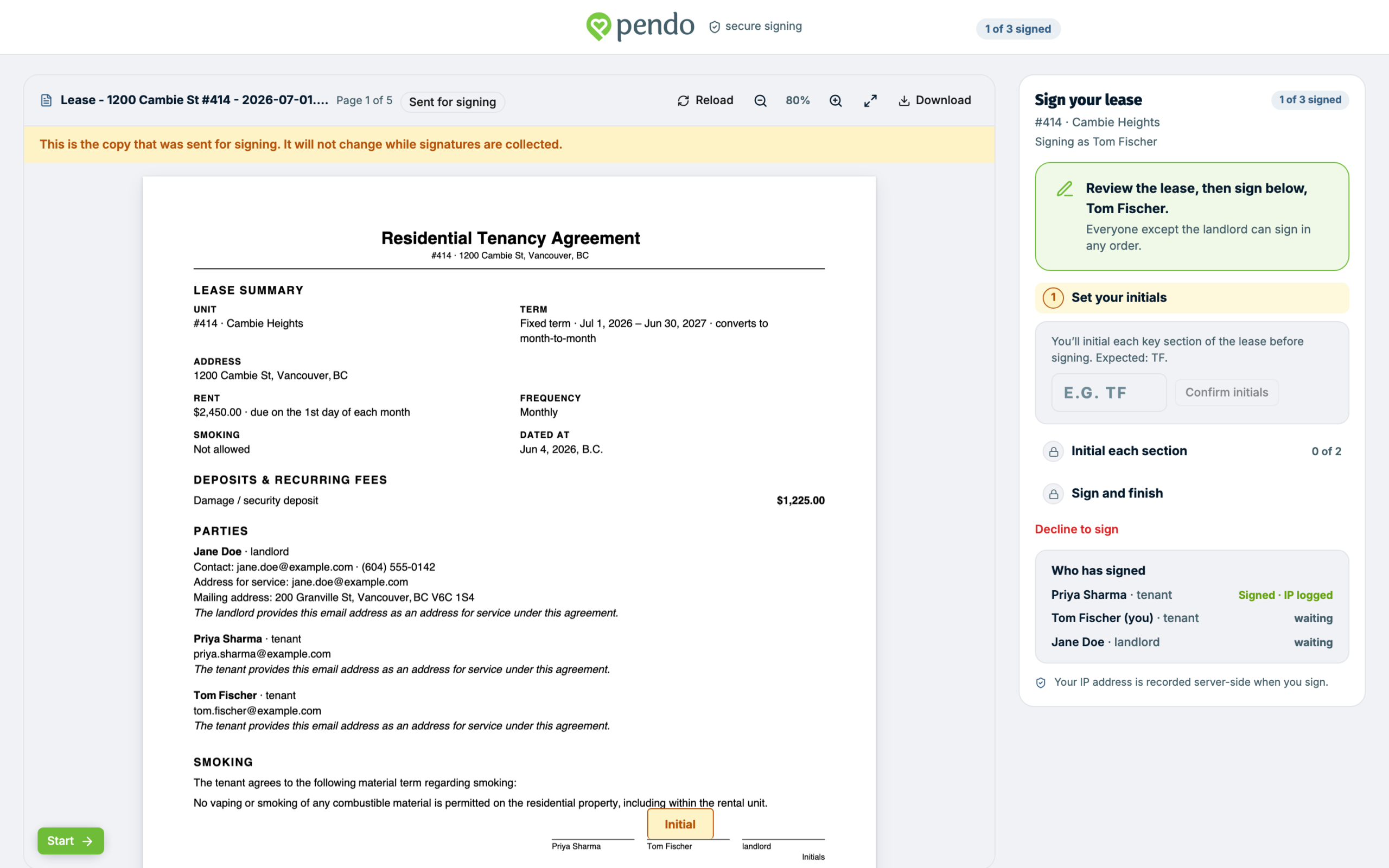
- Read the lease. Scroll through the whole thing first. Check your name, the address, the rent, the dates and the deposit. A signed lease is a real agreement, so nothing here is worth rushing.
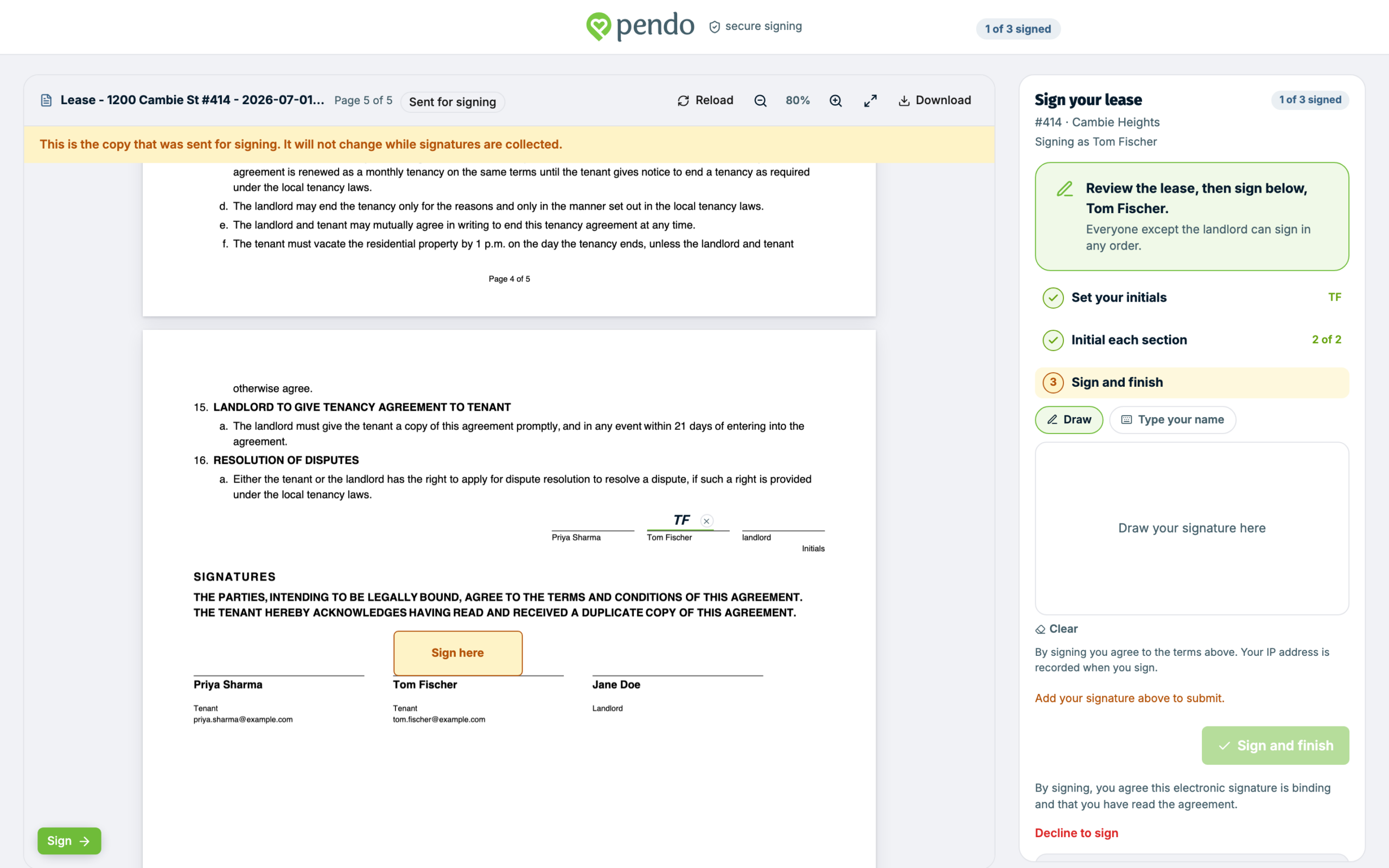
- Initial and sign. The panel walks you through it. If your lease asks for initials, type the initials Pendo shows for your name under Set your initials, then initial each marked section of the document. Last, draw your signature or type your name, and click Sign and finish. Either kind of signature counts.
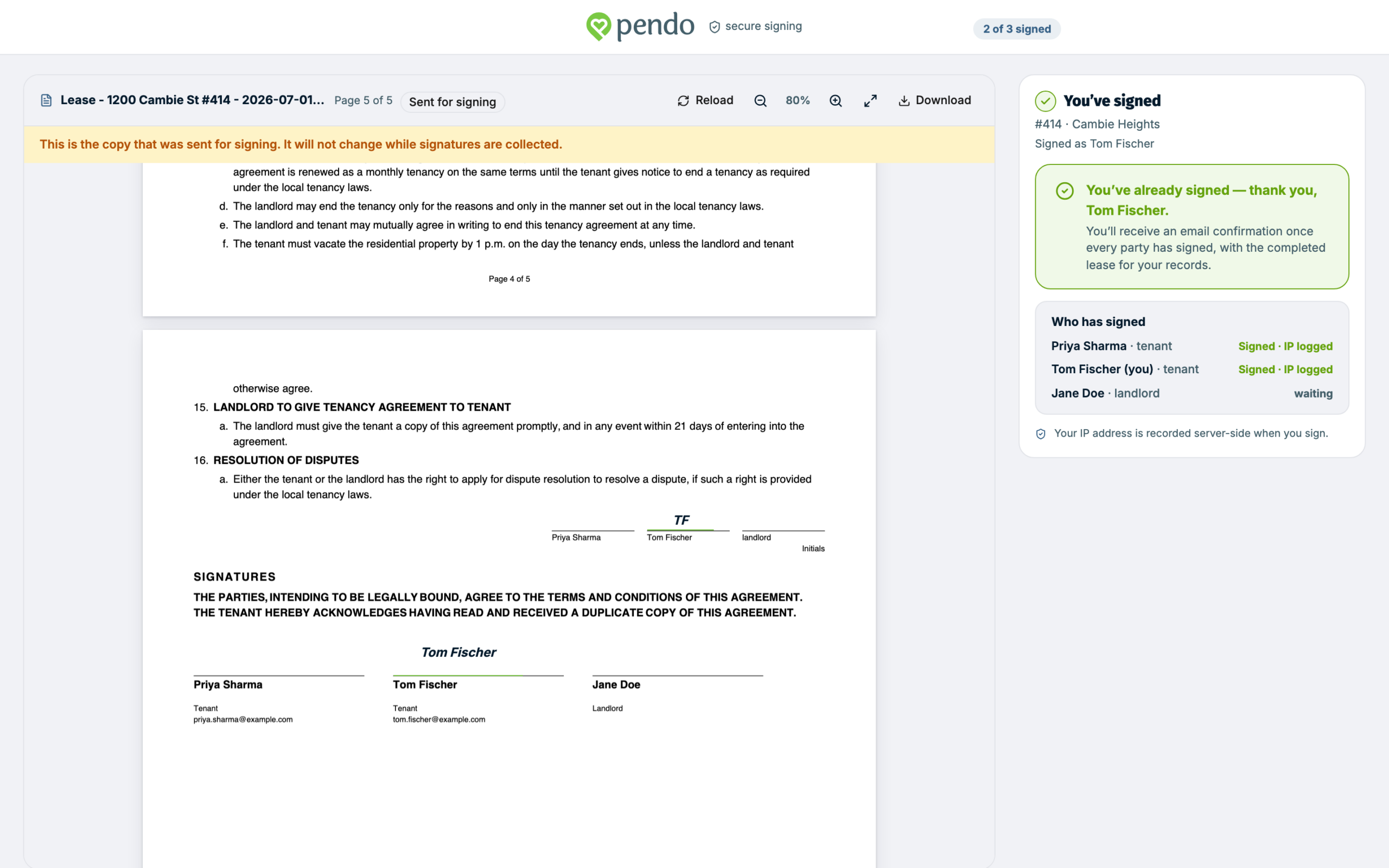
- That is your part done. The panel changes to You've signed and shows who else still has to sign. Keep the email, because the same link brings you back to the lease later.
If something in the lease is wrong #
You can click Decline to sign and add a short note saying why. Your landlord sees both, so the note is worth writing. They correct the lease and send it again.
Separate documents like a pet agreement never have a decline button, and some older leases do not have one either. If yours does not, just reply to your landlord.
If your screen looks different #
Some leases skip the initials and go straight to signing. Some older leases show the lease as a web page with the signature box at the bottom, instead of a PDF with a panel, and a few of those only let you draw your signature. All of them are real, and all of them work the same way: read, sign, done.
Is this email real? #
Fair question. Three checks, without clicking anything:
- Were you expecting it? A real lease names your landlord and your property, and arrives around when the two of you agreed it would. This catches almost everything.
- The link starts with
https://app.pen.do/, orhttps://tenants.pen.do/for separate documents like a pet agreement. Both are us. Work email systems sometimes rewrite links, so an address you do not recognise is a reason to ask rather than to panic. - Nobody will ever ask for your SIN, banking details, or a password to sign a lease. If a page wants any of that, close it.
- If you are unsure, contact your landlord directly, on a number or address you already had. Not the contact details in the email you are questioning.
See: Is this signing email real?
After you sign #
Your signature is not always the last one.
- If anyone else is on the lease, such as a co-tenant, it is not final until they have signed too. They each get their own email.
- Your landlord signs last. That step is what completes the lease.
- When everyone has signed, you get an email with the signed lease attached as a PDF. It also has a link to the same document online.
You will not get an email straight after signing your own part, or each time somebody else signs. Your landlord can see the progress, so ask them where it is up to. The signed copy email is the next one from us.
Your copy #
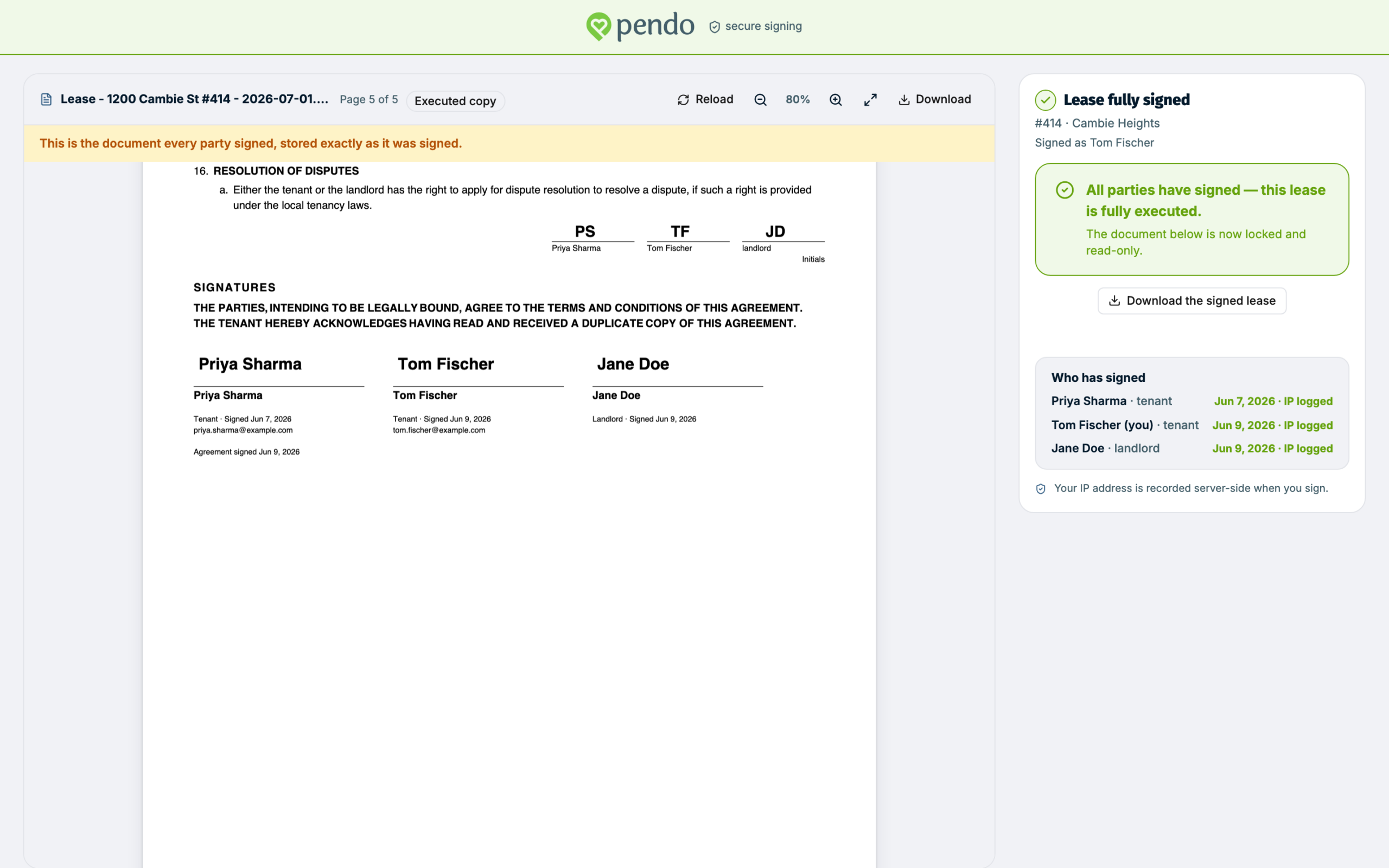
Once the lease is complete, you have it two ways.
- The email. The signed lease is attached as a PDF. Save it somewhere you will find it again.
- The link. Open it and click Download the signed lease. It is the same document, with everyone's signature on it.
If you open the link the moment the last person signs, you may see The signed lease is being prepared. Give it a minute, then use Check again.
On some older leases nothing is attached to the email and the page has no download button. There, use Print on the page and choose "Save as PDF" in the print window to keep a file.
Do I need an account? #
No. No account, no password, no app.
The link in your email identifies you as the signer. Treat it like a key to your own signature:
- Do not forward the email. Anyone who has that link can sign as you. If a co-tenant needs to sign, they get their own email with their own link.
- Lost the email? Ask your landlord to resend it. A resend sends the same link again, so an older email you already have still works.
- Got more than one? They normally open the same lease. But if your landlord revises the lease, or corrects your email address, you get a new link and the older ones stop working. If one will not open, use the newest.
- There is no countdown. The link does not expire after a few days. But it does stop working for signing if your landlord revises the lease, ends the tenancy, or the term runs out before everyone has signed. If it will not open, ask your landlord for a fresh one.
- After the lease is complete, the link keeps opening your signed lease for at least a year. Save the PDF anyway, so you are not relying on it.
Still stuck? #
Your landlord is the right first stop for anything about the lease itself: the rent, the dates, the terms, or a mistake in the document. They can fix it and send it again.
If something is wrong with the email or the signing page itself, email us at contact@pen.do.