
This article covers Pendo Rent 2.0 screens. Which screens a lease opens depends on the lease itself, not your account switch. Not sure which you're looking at? See: Which version am I looking at?
One tenant is leaving and another is arriving. This is the most common thing people get stuck on, and it is almost always the same thing: the unit still has a live lease on it, so Pendo either warns you or stops you outright, depending on the existing lease.
The order that works #
- Deal with the outgoing lease first. Either it has an end date already, or you give it one. See Ending a lease and companion documents.
- Then create the new lease, starting the day after the old one ends, or later.
Doing it in that order avoids the whole problem. If you have already started the new lease and hit a warning, read on.
The warning you are seeing #
First, an occupied unit is not even in the unit list at first: Pendo hides leased units by default. Tick Show leased units under the list to see it.
When you then pick a unit that still has a live lease, Pendo shows an amber notice rather than stopping you dead. It says the unit already has an active lease, gives the date it ends, and asks whether you meant to renew the existing one instead. If you have already terminated that lease, the date shown is your termination date rather than the original end date, because that is when the unit actually frees up.
That question is worth taking seriously. If the same tenant is staying on, you do not want a second lease at all: see Renewing a lease.
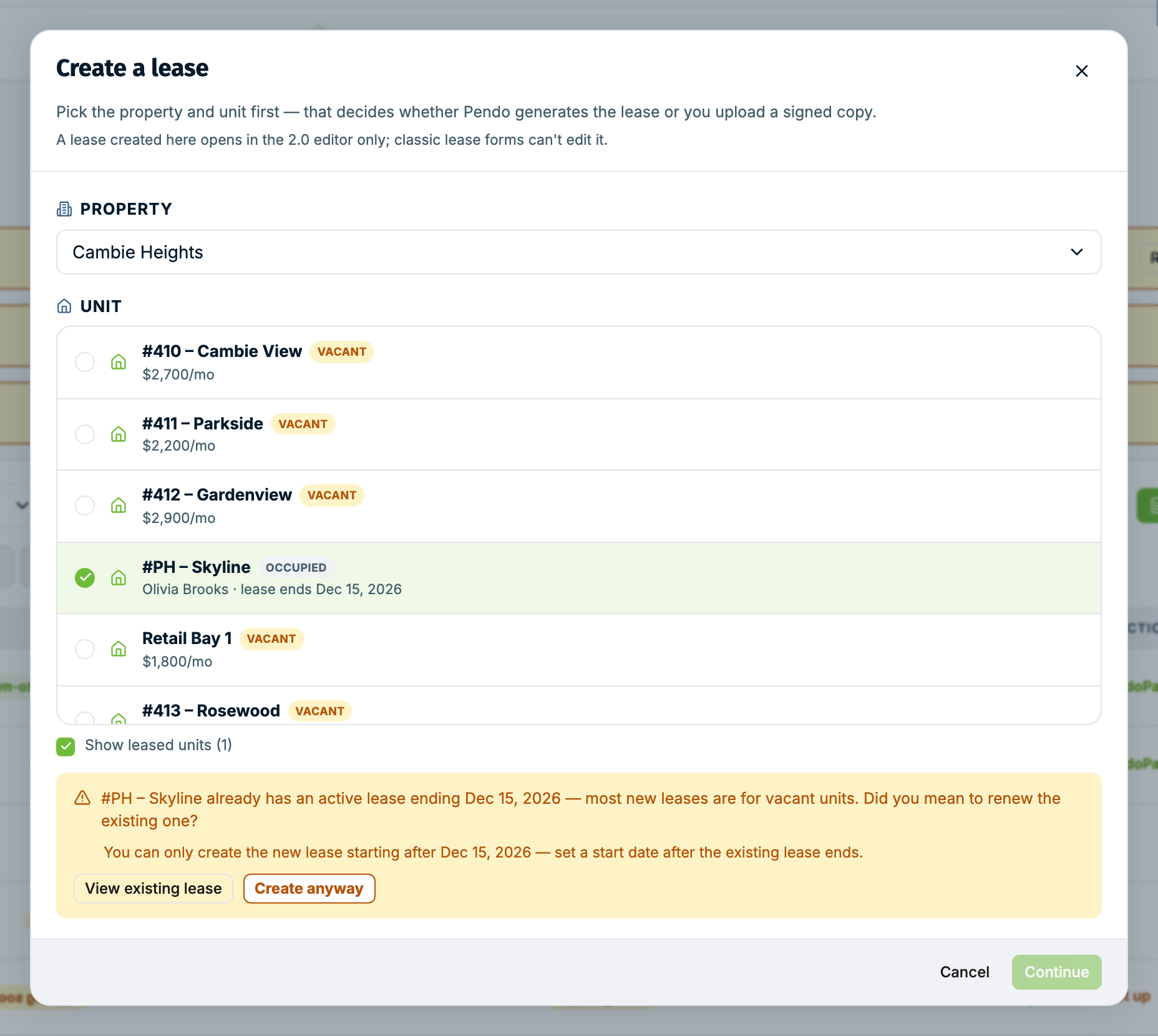
Everyone gets a "View existing lease" button, which opens the lease so you can check what is actually on the unit before deciding.
What happens next depends on the existing lease.
If the existing lease has an end date #
Pendo tells you the earliest date the new lease can start, which is the day after the old one ends. Set your start date to that day or later and the warning resolves itself.
There is also a Create anyway button. It is for getting on with the new lease now, not for creating an overlap: your start date still has to be after the existing lease's end date. The Property & terms step says so under the start date and holds Next until it is. It does not delete or change the existing lease.
If you ended a fixed term early, Pendo measures against your termination date, not the lease's original end date. A lease that was going to run to 31 December but was terminated effective 31 March lets the new one start from 1 April. You do not have to wait for the original end date to come around.
If the existing lease has no end date #
A month-to-month lease has no end date, so while it is still running Pendo has nothing to measure a safe start date against. In that case Create anyway is not offered, and the notice tells you to end the existing lease by setting a termination date first.
Do that and the unit opens up immediately. As soon as the termination is saved, the notice switches to measuring against your termination date: it names the earliest start date and Create anyway appears. You do not have to wait for the tenancy to actually end, so you can get the replacement lease set up and signed during the notice period, which is usually exactly when you need to.
What happens to rent collection #
Ending the outgoing lease cancels its scheduled rent payments from the effective date. Those are not moved across to the new lease, and undoing the termination does not bring them back.
So after the new lease is signed, set up rent collection on it. And there is a clock: thirty days after the termination date, Pendo removes the outgoing tenant's PendoPay banking details. Read Before you terminate a lease before you set the end date, because that is the step people regret.
A shortcut when the new lease looks like the old one #
Open the outgoing lease, open the three-dot menu at the top right, and choose Duplicate. It starts a new lease from the outgoing lease's terms, with the tenants, occupants, dates, and tenancy notes cleared, which saves retyping everything for a similar tenancy. A banner reminds you that you are working from a template. Nothing is saved until you save a draft or send, nothing is sent to anyone, and the original lease is not changed.
You still add the new tenant and set the new start date, and the overlap rules above still apply.
Duplicate is offered while a lease is Active, Month-to-month, or Upcoming. Once you set a termination date the lease reads Ending and Duplicate is no longer in the menu. If you have already ended the old lease, start with Create lease instead. You lose less than you might expect: a new lease opens with the legal terms from the most recent lease on your account that has terms of its own.
Once the new lease is signed #
It sits at Upcoming until its start date, which is correct and needs nothing from you. But rent collection does not carry over from the old lease. When the new lease becomes Active it says No rent collection attached and offers Set up PendoPay. That prompt does not show while the lease is Upcoming, so check back on the start date and set it up then.
A tenant moving between units #
Same shape, twice over. End the lease on the unit they are leaving, then create a new lease on the unit they are moving to. The person record stays as it is, so you can link them to the new lease rather than typing them in again.
You do not have to wait for the old lease to end before you link them. In the tenant picker, someone who already holds a lease shows a small "On a lease" marker, and their row is still pickable. If the old lease's dates overlap the new one, an amber note appears under their name naming that lease, its unit and its dates, with a Link anyway button. That is there so you can tell a move across the hall from a genuine duplicate. If it is the move you meant, choose Link anyway and carry on; if it is a mistake, use Unlink on their card. The note comes back once more on the review step if you have not acknowledged it yet, and it never stops you sending the lease. To look at the other lease itself, open it from the Leases list.
The same note shows if you add someone to an existing lease from its Add tenant button while they are on another live lease.