Your tenants only get into the Pendo Rent tenant app once you invite them. This article covers who you can invite, what they receive, and how to remove or restore access.
Available on Plus plans and up.
Before you invite #
- Turn the app on for the property first. Turning it on doesn't email anyone. See Tenant app: How it works and what you share.
- Your tenant needs their own email address. Two tenants who share one email can't both be invited with it.
- They need a lease you've sent or recorded. A draft lease doesn't count. An upcoming lease does, and so does one that ended in the last 90 days.
- You need edit access to People. Teammates with view-only access can't send invites.
- An archived tenant has to be unarchived before you can invite them.
Where to invite from #
- The Tenant app page under People. You can invite up to 250 tenants at a time.
- The tenant's row in the People list, or their own page.
- The "Lease signed" prompt, which offers to invite the tenants on that lease.
- The offer that appears right after you turn a property on.
What your tenant receives #
- An email from "[your company] via Pendo Rent" (or your name, if your account has no company name), with the subject "[your company] invited you to the Pendo Rent tenant app" and an Open the tenant app button.
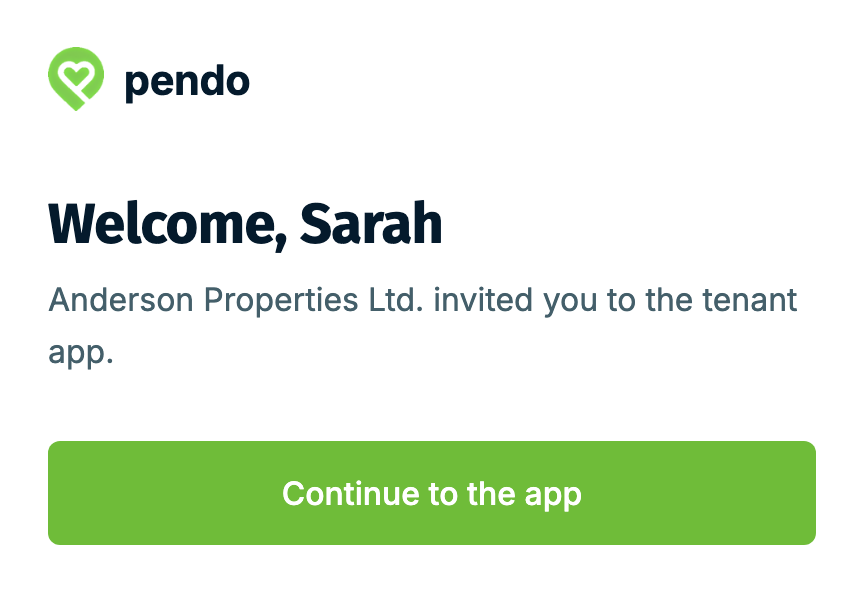
- A welcome page with a Continue to the app button. One click and they're in.
- No password. When they need to sign in again, they enter their email and get a fresh sign-in link.
Invite links work for 7 days. Sign-in links work for 30 minutes. Each link works once. If a link has expired, your tenant enters their email on the page that opens and gets a new one.
If you send a new invite, the earlier invite link stops working.
Removing access #
- Click Remove access on the tenant's row on the Tenant app page, or on their profile. It takes effect on your tenant's very next click.
- Archiving the tenant ends their access straight away.
- Archiving a property or unit doesn't. Tenants there keep the app until 90 days after their lease ends.
- Changing a tenant's email pauses their access until you invite them again. Tenants can't change their own email.
Why a home disappears from their app #
A home leaves your tenant's app when:
- You removed their access, or archived them.
- The tenant app is off for that building, or for any other building where they rent from you.
- Your plan no longer includes the tenant app.
- Their lease ended more than 90 days ago.
Your tenant sees a short note instead, with the street and city and the reason. It shows no payments, amounts or documents. They see it only while signed in, or when they sign in for another home that's still in the app. A tenant with no home left in the app gets an email instead of a sign-in link. After a removal or archiving, the note stays for 90 days. After a lease ends, it shows for 90 days once their access ends. While the app is off or your plan has changed, it stays as long as that lasts.
Bringing a tenant back #
- You removed their access: invite them again. If you archived them, unarchive them first.
- The app is off for a building, or your plan changed: turn it back on, or upgrade. Their invites are kept, so access comes back on its own.
- Their lease ended more than 90 days ago: they need a new lease before you can invite them again.
Inviting someone again never moves the day their payment history starts. It always starts from your first invite. See Tenant app: Payments your tenants can see.
Check a tenant's access #
Click the eye on a tenant's row in the Tenants tab of the Tenant app page. The app opens as that tenant sees it, and the band at the top says where they stand, for example "Has access", "No access yet: invite link expired" or "No access: access removed". The preview is read-only, and your tenant isn't told.
Common questions #
"My tenant didn't get the invite." Ask them to check spam. Then send a new invite, or have them enter their email on the sign-in page for a fresh link. Only an email you've invited gets one.
"My tenant wants to change their email." Update it on their lease, then invite them again.
"Will my tenant know I removed them?" Only if they're signed in at the time: their next click shows a short note saying their access to that home was removed. Nobody is emailed, and they can't sign in again for that home, so let them know yourself.
For a walk through the app from your tenant's side, see Tenant app: What your tenants see.
The Pendo Rent Team