This article is for landlords and property managers. Looking for what a tenant sees when they sign a lease? See Pendo Rent 2.0: What your tenant sees when signing.
The Pendo Rent tenant app gives your tenants one place to see their lease, their rent payments and their documents, and to report issues. This article walks through it from your tenant's side, so you know what they're looking at when they get in touch.
Available on Plus plans and up.
How your tenant gets in #
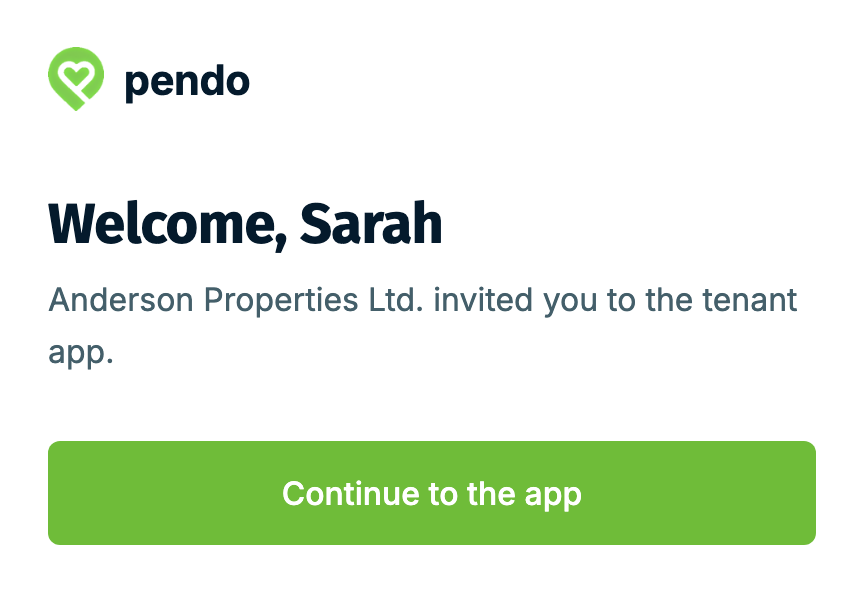
You invite them, and they get an email from "[your company] via Pendo Rent" (or your name, if your account has no company name) with an Open the tenant app button. The button opens a welcome page with Continue to the app. There's no password: when they need to sign in again, they enter their email and get a fresh sign-in link.
Turning the app on for a property doesn't email anyone. Nothing goes out until you invite. For who you can invite, link lifetimes and removing access, see Tenant app: Inviting tenants and managing their access.
What's in the app #
Your tenant sees these tabs:
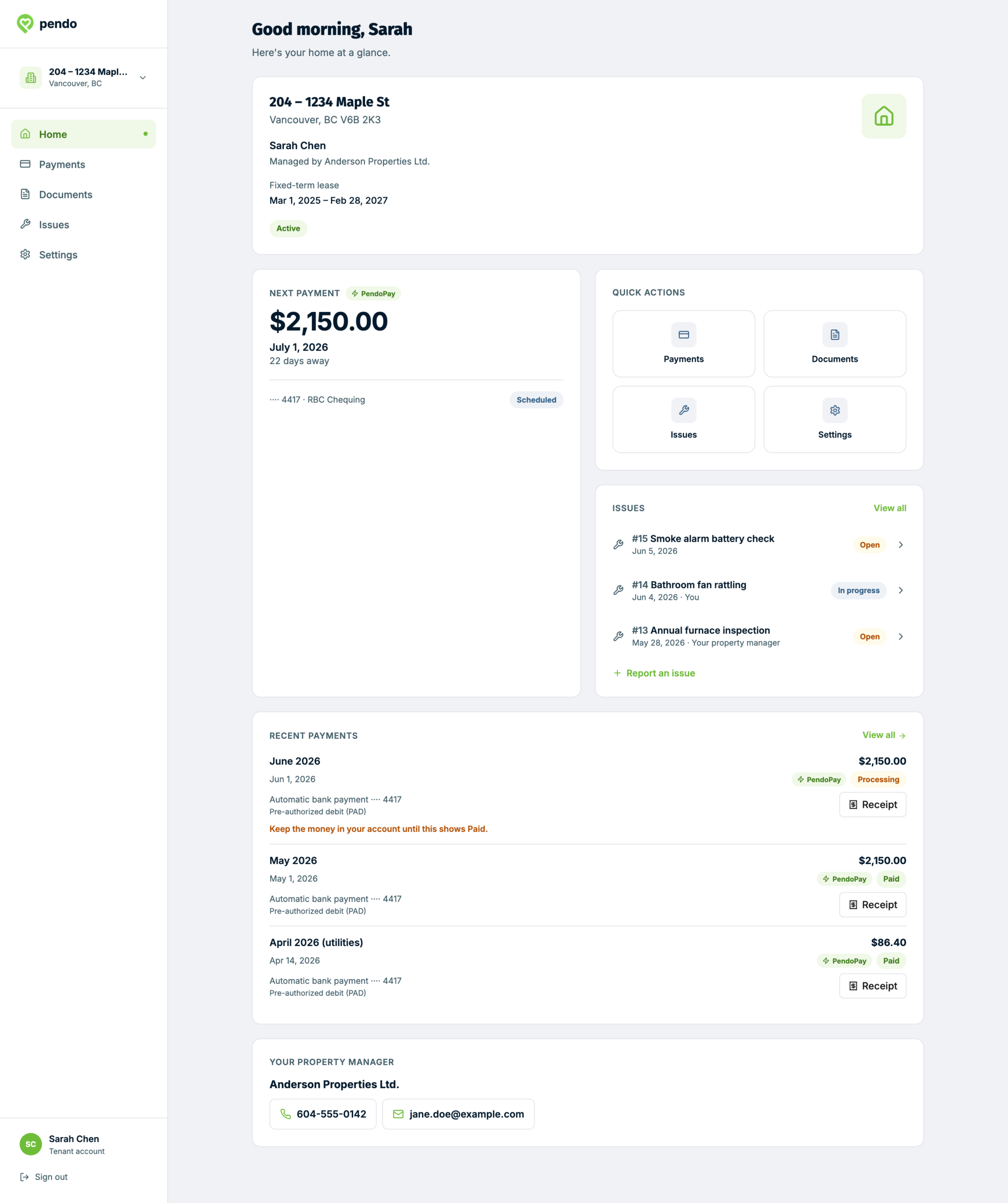
- Home. Their lease at a glance: the type, the dates, the status and who manages it. Below that, their next payment, their open issues, their recent payments, and how to reach you.
- Payments. Their payment history, with a receipt for every payment.
- Documents. The documents on their leases.
- Issues. Issues on their lease, and a form to report a new one.
- Messages. A private conversation with your team, once Messages is on for your account.
- Settings. The email they sign in with, and sign out.
If a tenant rents more than one home from you, they pick the home first, and can switch between them.
Payments #
- Each tenant sees their own payments only: PendoPay payments and the ones you record. Co-tenants on the same lease don't see each other's.
- History starts the day you first invite them. Payments you recorded by hand before that stay with your team. PendoPay payments follow the bank's dates: one taken or completed on or after the day of your first invite shows, and scheduled or processing ones always show. The end of their list tells them where it starts.
- You can hide a payment you recorded by setting Show in Tenant App to No. PendoPay payments always show.
- Each payment shows the amount, the date, the category, the status, the property and how it was paid, with a receipt.
- They never see your notes, descriptions or attachments, your fees, tax, interest or deposit splits.
- Their next payment shows on Home and the Payments page. With PendoPay, it's their next scheduled payment. Without one, it's the rent amount and how often it's due, from the lease.
- A rent increase shows only to a tenant Pendo Rent emailed the notice to, while the amounts and date still match the lease. For now this covers monthly rent.
When you record a payment your tenant will see, a short line on the screen usually tells you so. For exactly what shows, what doesn't yet, and the "payment is missing" checklist, see Tenant app: Payments your tenants can see.
Tenants who don't use PendoPay also see a short note suggesting they ask you about it. It's just text, with no button.
Documents #
The Documents tab groups documents by lease: the current lease, an upcoming one and earlier ones. If a tenant has more than one lease with documents, they pick one from a list at the top.
What shows for each lease:
- The signed lease, to a tenant who signed it. Before then, if your latest Pendo Rent 2.0 signing email went to that tenant, the lease shows that it needs their signature, and they sign from the email link.
- A Form K, a pet agreement or an addendum, once you've sent it to them through Pendo Rent.
- A notice, once sent, to the tenants it was sent to. Rent increase notices and notices scheduled in Classic don't appear in Documents.
- Files you upload, like a paper lease or a scanned notice, only once you share them. To share a file, open the lease's Documents and click the eye next to it. If the only copy of their lease is an upload you haven't shared, your tenant sees "Contact your property manager for a copy of your lease." See Tenant app: How it works and what you share.
A few special cases:
- A Classic lease with no record of reaching your tenant is hidden when they have another lease. When it's the only lease they have for today, it shows as "Lease on file with your property manager", with any files you've shared.
- A lease in effect that's missing your signature shows its details with no download.
- Draft leases never show.
Issues are shared on the lease #
Everyone on a lease sees the issues any of them report, including the description, the photos and the reporter's name. The report form tells your tenant this before they send it.
- An issue your team logs shows only to the tenant it names, with its subject, status and category, but not the description or photos. It says "Your property manager logged this issue. Ask them if you need the details."
- On an issue a tenant reported, anything you add to the description reaches everyone on the lease. Pictures you attach don't show in the app.
- A tenant added to a lease later sees issues from when they joined, plus any they reported or that name them.
- Reporting: up to 10 photos, and a Mark as urgent option that doesn't alert anyone. The app tells them to call you if it can't wait. Tenants can only report if the Issue Tracker is on for that property.
- Emails: the tenant an issue is recorded against gets an email when you change its status or add a note, and usually when you edit the subject, description or pictures. The email includes the description and any new note.
Keep private details out of issues. Anything you write on one, including a note, can reach your tenants in the app or by email.
Messages #
Once Messages is on for your account, your tenant can write to your team from the Messages tab. It's private between that tenant and your team, so co-tenants don't see each other's. They can send up to 3 photos and one document from their Documents. Once they've signed in, they're emailed about messages they haven't read, unless they turn those emails off. If you turn off Messaging for a property, they see a note to contact you directly instead. See Messages: Messaging your tenants.
How they reach you #
Your tenant sees your company name, or your own name if your account doesn't have one, with a phone number and email for each home. Until you confirm those details, they see "your property manager" instead.
You'll see exactly what tenants will see when you turn the app on for a property, and you can confirm it there or later in the property's settings. If there's no phone number for a home, tenants with an urgent repair are told to contact you directly, with no number to call. It's worth adding one.
When a home disappears from their app #
A home leaves your tenant's app if you remove their access or archive them, if the app is off for that building or another building where they rent from you, if your plan no longer includes the app, or if their lease ended more than 90 days ago. They see a short note instead, with the street, the city and the reason. They see it only while signed in, or when they sign in for another home that's still in the app. A tenant with no home left in the app gets an email instead of a sign-in link. To bring them back, see Tenant app: Inviting tenants and managing their access.
See it for yourself #
On the Tenant app page under People, open the Tenants tab and click the eye on a tenant's row. The app opens exactly as that tenant sees it. The band at the top says whether they have access, for example "Has access" or "No access yet: invited, hasn't signed in". The preview is read-only, your tenant isn't told, and it works before you turn the app on.
Common questions #
"My tenant says a payment is missing." Check the Visible column in your payments list first, in case someone hid it. Then see the checklist in Tenant app: Payments your tenants can see.
"My tenant can see their roommate's issue." That's by design. Issues are shared with everyone on the lease, and the form says so. Payments aren't.
"My tenant can't see their lease." If you uploaded it, share it from the lease's Documents. If your latest Pendo Rent 2.0 signing email went to them, it shows as needing their signature. A lease signed through Pendo Rent 2.0 may say "Being prepared" for a short while once everyone has signed, then the signed copy appears.
"My tenant can't sign in." Ask them to enter their email on the sign-in page for a fresh link, and to check their spam folder. Only an email you've invited gets a link. If you changed their email address, invite them again.
Your tenants can read Using the Pendo Rent tenant app for the same tour from their side.
The Pendo Rent Team