This article is for tenants. If your landlord or property manager uses Pendo Rent, they may invite you to the tenant app: one place to see your lease, your rent payments and your documents, and to report issues.
Looking for help signing a lease? See Signing your lease online.
Getting in #
- Look for the invite email. It comes from your landlord or their company "via Pendo Rent", with an Open the tenant app button. The link works for 7 days and it's just for you, so please don't forward it.
- Click Continue to the app on the page that opens.
- There's no password. When you need to sign in again, enter your email on the sign-in page and we'll send you a link. Sign-in links work for 30 minutes.
If a link has expired, the page that opens lets you enter your email and get a new one. No email? Check your spam folder. Only an email your landlord invited can sign in, so if nothing arrives, ask them to check the email they have for you.
What's in the app #
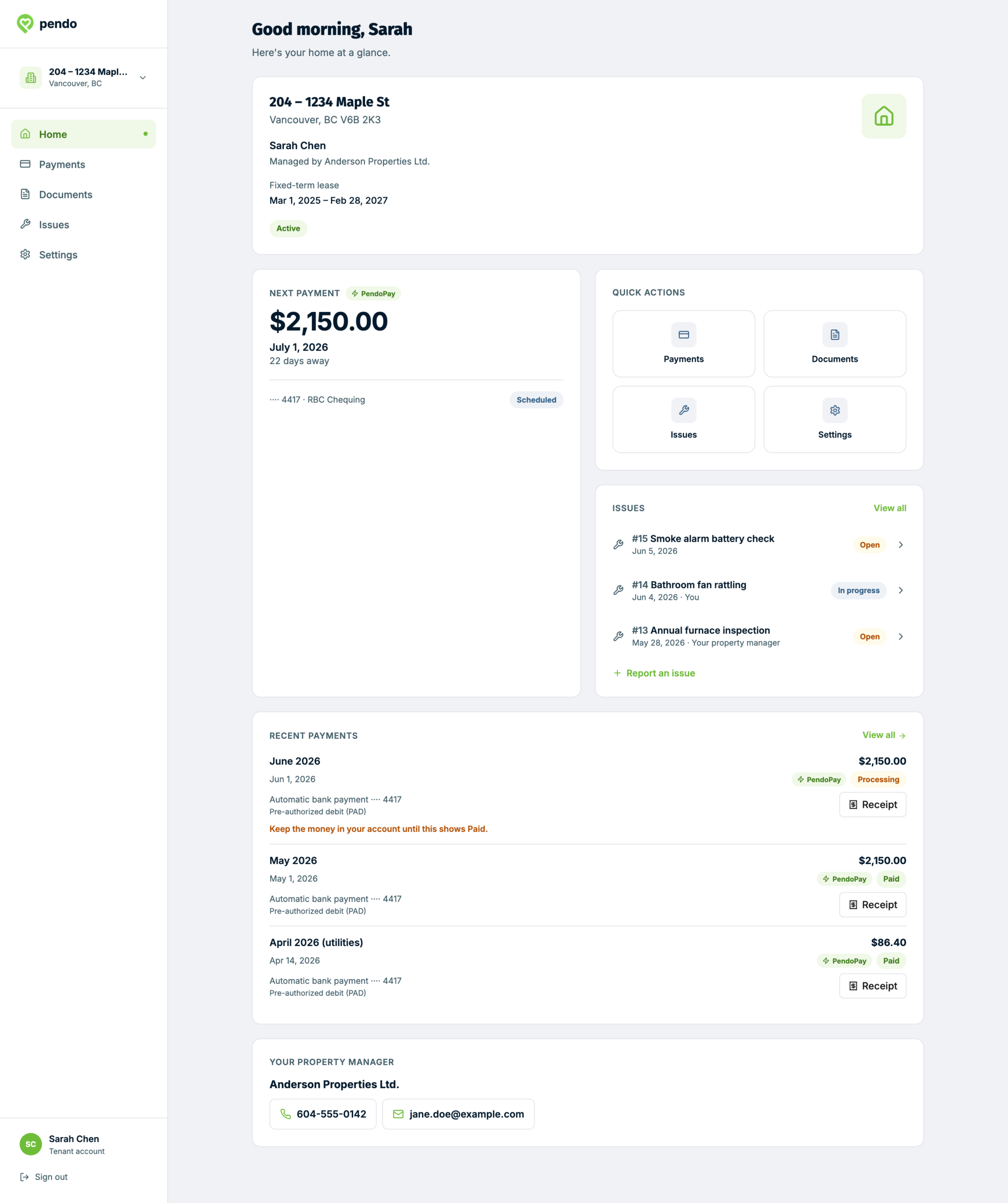
- Home. Your lease at a glance, your next payment, open issues, recent payments and how to reach your property manager.
- Payments. Your payment history, with a receipt for each payment.
- Documents. Your lease and the documents that go with it.
- Issues. Issues on your lease, and a form to report a new one.
- Messages. A private conversation with your property manager, if they use Messages.
- Settings. The email you sign in with, and Sign out. On a phone, open Settings from the shortcuts on Home.
If you rent more than one home from the same landlord, pick the home after you sign in. You can switch between them at any time.
Payments #
- You see your own payments only. Roommates on the same lease don't see yours, and you don't see theirs.
- The list covers up to the last 24 months, and may not include every payment. The note at the end of the list says where your history in the app starts. For earlier or missing payments, ask your property manager.
- Each payment has a receipt with the amount, the date, the month it's for and a receipt number. Open it from the payment.
- Your next payment shows on Home and the Payments page. If a PendoPay payment is scheduled, it shows the date and amount. Otherwise it shows the rent from your lease, or "No upcoming payment scheduled."
Documents #
Your documents are grouped by lease: your current lease, an upcoming one, and earlier ones.
- Click View to see a summary of the lease, or PDF to download it.
- If more than one of your leases at this home has documents, pick one from the list at the top.
- If your lease says it needs your signature, use the link in the email we sent you to sign. Once everyone has signed, it may say "Being prepared" for a while before your copy appears.
- No copy to download? Check the lease's status first. If it says "Contact your property manager for a copy of your lease.", ask them for one.
Reporting an issue #
- Open Issues and click Report an issue.
- Say what's wrong, add details, and add up to 10 photos if they help.
- Send it. Your property manager is notified.
- Everyone on your lease can see your report, including your name and photos.
- Mark as urgent puts it at the top of their list. It doesn't alert anyone. If it can't wait, call them.
- Emergency? Don't use this form. For fire, smoke, someone hurt or in danger, or a smell of gas, get out first, then call 911. For an urgent repair, like a flood, no heat or a door that won't lock, call your property manager now. Issues reported in the app aren't watched around the clock.
- You'll get an email whenever the status of your issue changes.
- Your property manager may reply on the issue in the app, under Conversation. Everyone on your lease who can see the issue can read it, and reply while replies are open.
If you can't report an issue in the app, contact your property manager directly.
Messages #
If your property manager uses Messages, you can write to them from the Messages tab.
- It's just between you and the office. Roommates on your lease don't see it.
- You can send text, up to 3 photos (JPG, PNG or WebP, under 20 MB each) and one document from your Documents.
- Something broken? Report it under Issues instead, so it's tracked.
- Emergency? Call, don't message.
- You'll get an email about messages you haven't read yet. You can turn these off for each home in Settings, and nothing is hidden in the app. Replying to the email doesn't reach anyone, so reply in the app.
- After your lease ends, you can usually still send messages for 15 days, then read the conversation until your access to the app ends.
If you see "Messaging is off for this home", contact your property manager directly.
Changing your details #
You can't change your email in the app. Ask your property manager to update it on your lease and send you a new invite.
If a home disappears #
If you're signed in, you'll see a short note instead, with the address and the reason, for example that your access was removed or that your lease ended. If you can't sign in at all, ask your property manager. Homes you've moved out of stay available for up to 90 days after your lease ends, for receipts and records. Questions about your access go to your property manager.
Who to ask #
Pendo Rent makes the app. Your landlord or property manager runs your tenancy. For anything about your rent, your lease, a payment, an issue or your access, contact them. Their details are usually on Home. If they aren't, use the contact details on your lease.
The Pendo Rent Team