
This article covers Pendo Rent 2.0 screens. Which screens a lease opens depends on the lease itself, not your account switch. Not sure which you're looking at? See: Which version am I looking at?
Two jobs here: ending a lease, and the documents that hang off one.
Ending a lease #
What this does, and what it does not #
Ending a lease in Pendo schedules the end. Rent collection stops on the effective date, and the lease stays on file with its history.
These screens do not author or serve a legal termination notice. In BC, serve official RTB notices to end tenancy through Send Notice, in the quick actions on the property or the unit.
Pendo does not fill the form in. You complete the official RTB form yourself, upload your copy, then choose Serve by email to email it to the tenants, or Log without sending to record it on the lease without emailing anyone.
The five BC notice forms Pendo handles:
- RTB 29: four month notice to end tenancy
- RTB 30: 10 day notice to end tenancy for unpaid rent or utilities
- RTB 32: two month notice to end tenancy
- RTB 33: one month notice to end tenancy
- RTB 51: address for service
Get the forms themselves from the BC Residential Tenancy Branch website. BC also has rules about how a notice may be served: serving by email is generally only valid when the tenant has agreed to it in writing, for example through an RTB-51 or a clause in the lease. Check the Residential Tenancy Branch's service rules before relying on Serve by email.
Scheduling the end #
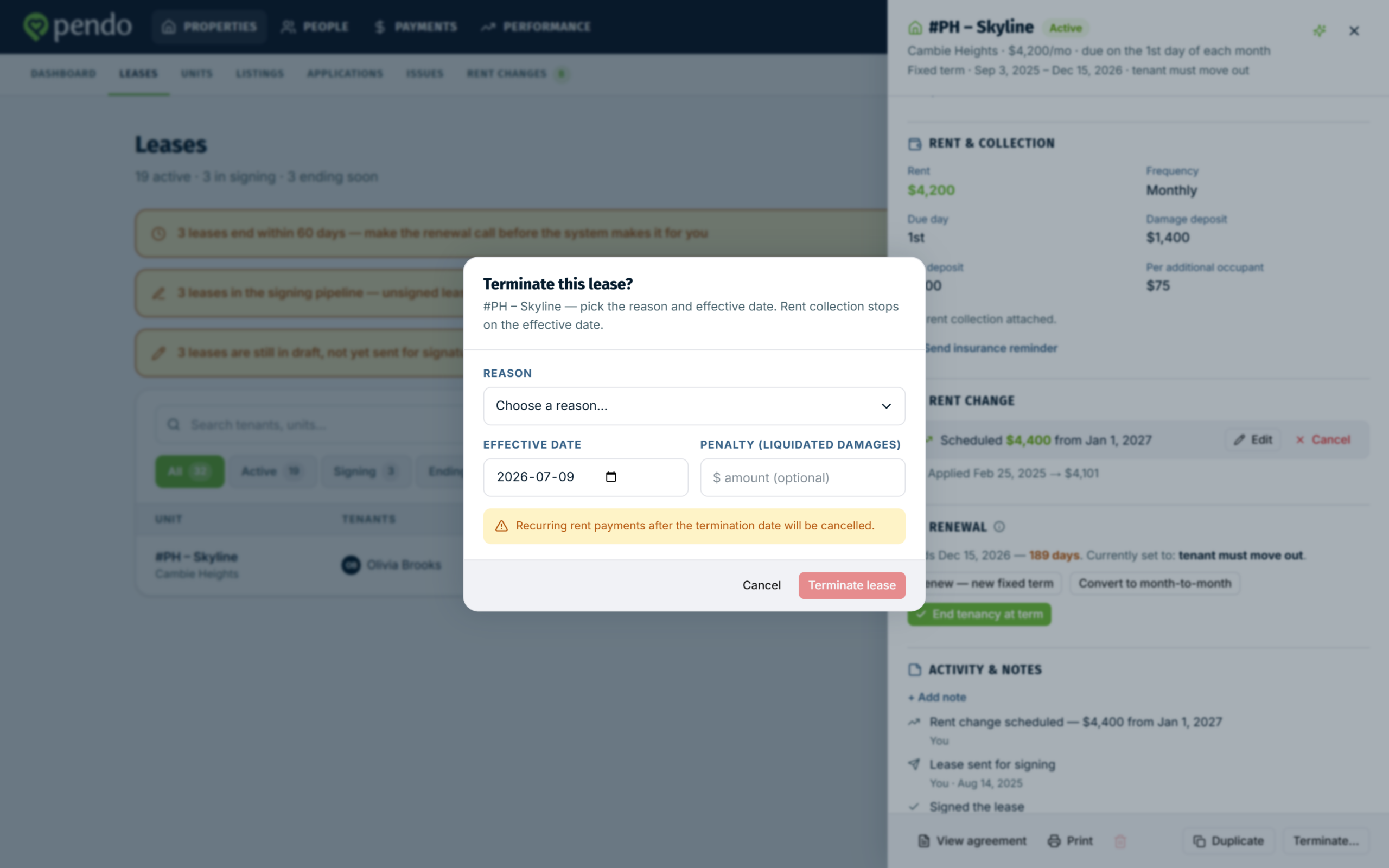
- Open the lease and click Terminate… at the bottom. It shows on live leases.
- Pick the Reason, or choose Other and describe it.
- Set the Effective date.
- Add a Penalty (liquidated damages) if this lease carries one. The field shows only on a fixed-term lease with an end date, so month-to-month and weekly or fortnightly leases do not get it.
- Click Terminate lease.
Recurring rent payments after that date get cancelled. Pendo warns you first.
A tenancy simply running out at the end of its fixed term is a different control: End tenancy at term, under Renewal. It sets the end of term plan, not an early end.
Undoing it #
The lease then shows a Termination block with the effective date, the reason, any penalty, and Undo termination.
Undo puts the lease back. One catch, and it bites: cancelled payment schedules are not restored. You set rent collection up again yourself.
Companion documents #
Five kinds of document attach to a lease: addendums, welcome letters, BC RTB notices, pet agreements, and Form K. Use Add a document. Only the ones fitting that property and unit are offered.
If you are looking for an amendment, that is an addendum here. Pendo calls it an addendum, and the text you write goes in a field labelled Amendment text.
Addendums, pet agreements and welcome letters need the lease agreement on file first. If it is missing the tile says so and offers Complete agreement. A welcome letter also needs at least one tenant with an email address.
Sending or recording #
Addendums, pet agreements and Form K offer two paths. The welcome letter is emailed or recorded, and it is the one document whose behaviour follows the lease: a Pendo Rent 2.0 lease can actually send it, an older lease can only record it.
The BC notice tile here only logs a notice you have already served. To actually email one to your tenants, use Send Notice in the property or unit quick actions instead. Two different jobs, two different places.
Send for signing emails every tenant a signing link, tracks who has signed, and comes back for you to countersign.
Record only logs the document on the lease. Nothing is emailed and nothing is signed. It stores the event and the details you typed, not a copy of a document you hold. No upload.
Signing, countersigning, and printing #
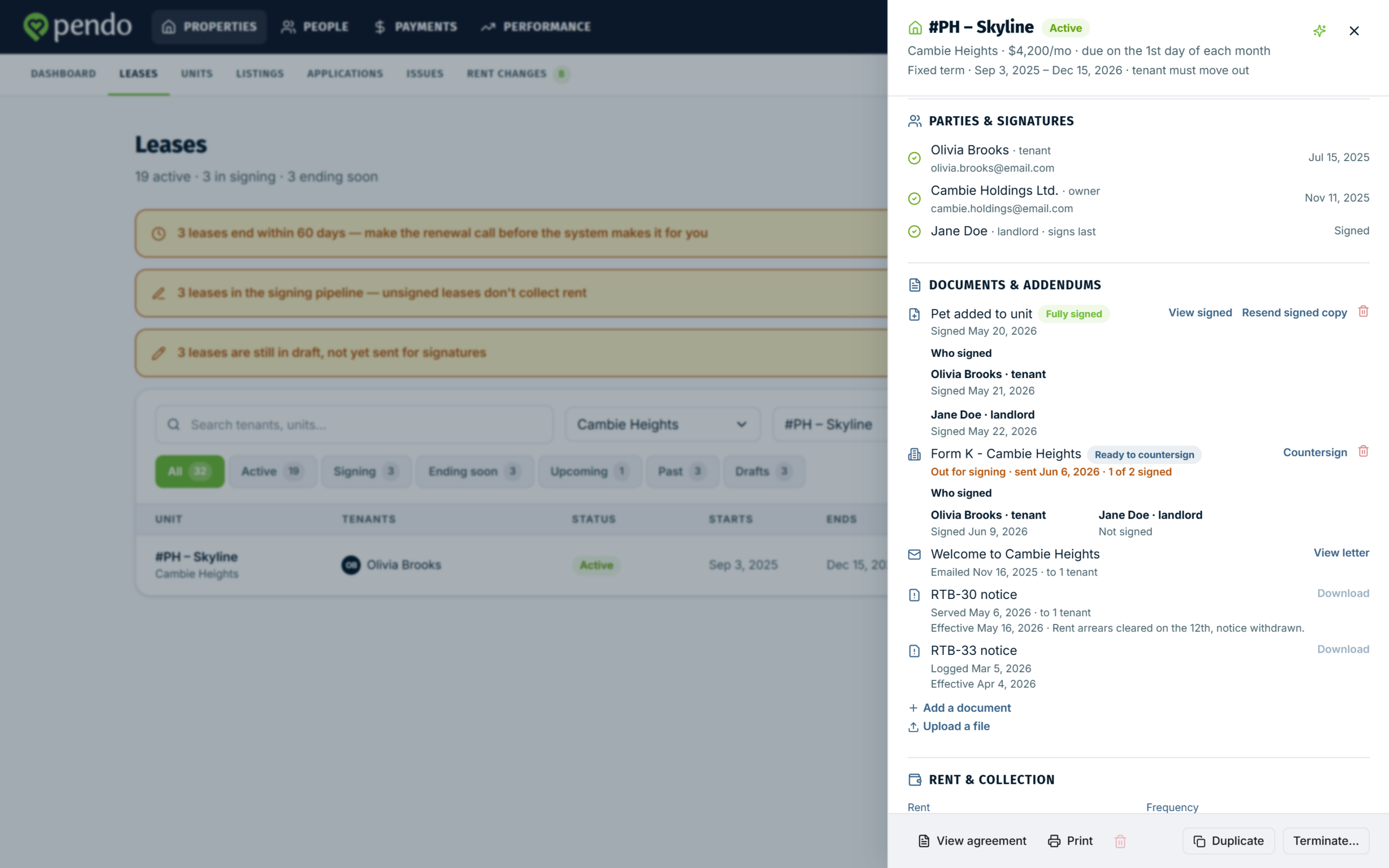
The document row shows where it is: Draft, Out for signing, Ready to countersign, or Fully signed, with a count of tenants signed once it has been sent. Resend nudges whoever is outstanding, and on a fully signed document it reads Resend signed copy and sends the signed copy to everyone.
Only one document of each type can be out for signing at a time. To replace one, use Delete on its row first.
You sign last. Once every tenant has signed, use Countersign. Add your signature and confirm. The date and your IP address are stamped.
View record shows the document with who signed and when. On a fully signed document the same control reads View signed. Print keeps a copy through your browser.
The limits worth knowing #
- Form K is for BC strata (condo) units only.
- Pet agreements need pets on the lease. If pets are off for the property or unit, the tile says so and offers to turn them on.
- Companions freeze the moment you save a termination date. Not on the end date, the moment you save. No new documents can be added. Anything already out for signing stays out: the tenant can still sign it, but you will not be able to countersign it, so it can never finish.
That last part is why, if a companion is out for signing and you are about to terminate, you let it finish first.