
This article covers Pendo Rent 2.0 screens. Which screens a lease opens depends on the lease itself, not your account switch. Not sure which you're looking at? See: Which version am I looking at?
Terminating a lease does more than change its status. Read this first, because one part of it cannot be undone.
The short version #
Setting a termination date does four things:
- Rent collection stops on the effective date.
- Scheduled rent payments after that date are cancelled, including one-time payments still pending.
- Companion documents freeze immediately, on the day you save it, not on the effective date.
- Thirty days after the termination date, the tenant's PendoPay banking details are deleted, unless they are on another active lease.
Pendo warns you about the payments before you confirm. It is worth reading rather than clicking past, because of the next section.
Undo does not bring the payments back #
You can undo a termination. The lease goes back to how it was.
The cancelled payment schedules do not come back with it. You set rent collection up again yourself. Pendo says so when you undo, but by then the schedules are already gone.
This is the single most common surprise with terminations, so if you are unsure whether the tenant is really leaving, wait until you are sure.
The 30 day clock on the tenant's banking #
Terminating also starts a clock. Thirty days after the termination date, Pendo deletes the tenant's PendoPay banking details, unless they are on another active lease. Pendo emails you and the tenant a warning naming the date, about two weeks after you terminate.
Past that point, undoing the termination is not enough to restart rent collection: the tenant sets up their PendoPay banking again from the start.
What the tenant sees #
Nothing, at the moment you save it. Terminating is a Pendo record, not a notice. One thing does reach them later: if they are on PendoPay, the banking-deletion warning above goes to them as well as to you.
It is not a legal notice to end tenancy. In BC, serve official RTB notices through Send Notice in the quick actions on the property or the unit. Pendo does not write the notice for you: you complete the official form, upload your copy, then choose to serve it by email or log it.
If the tenant is already set up on PendoPay, they may still see a scheduled payment until the termination takes effect. Check the payment schedule yourself rather than assuming.
When to do it #
Do it when the end date is settled, not when it is being discussed. A termination you enter and undo costs you the payment schedule; a termination you enter a week later costs you nothing.
A tenancy simply reaching the end of its fixed term is a different thing entirely, and does not need a termination at all. Use End tenancy at term under Renewal instead: see Renewing a lease.
How to do it #
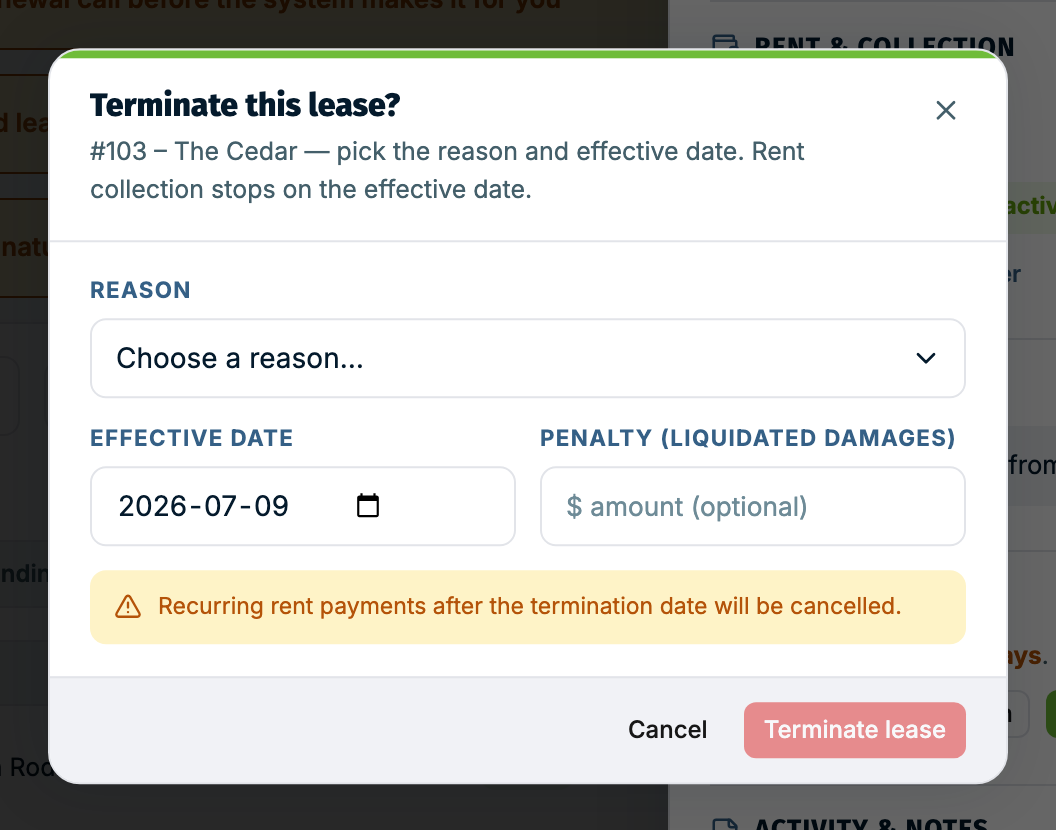
- Open the lease and click Terminate… at the bottom. It shows on live leases.
- Pick the Reason, or choose Other and describe it.
- Set the Effective date.
- Add a Penalty (liquidated damages) if this lease carries one. The field shows only on a fixed-term lease with an end date.
- Click Terminate lease.
Full detail on what happens afterwards, including companion documents and undoing, is in Ending a lease and companion documents.
If a new tenant is coming #
Terminating is step one of a turnover, not the whole thing. Once the termination is saved, the unit is free for a new lease starting the day after your termination date, so you can set the replacement up during the notice period rather than waiting for the tenancy to end. Replacing a tenant in a unit covers the order that works.