
This article covers Pendo Rent 2.0 screens. Which screens a lease opens depends on the lease itself, not your account switch. Not sure which you're looking at? See: Which version am I looking at?
Once a lease is out for signing, the Leases page is where you watch it land.
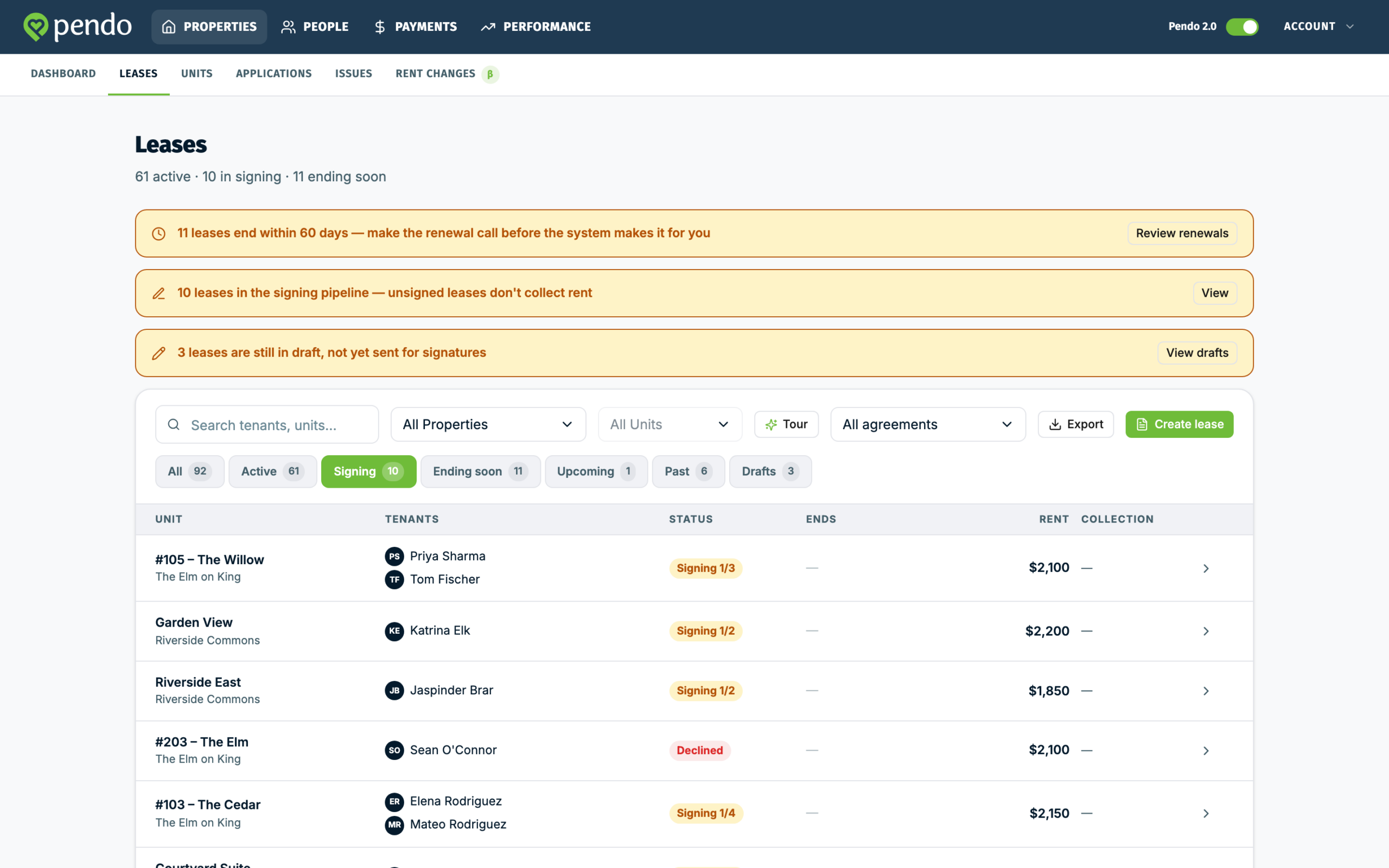
The statuses you'll see #
Each lease carries one status: Draft, Signing with a signed count, Declined, Upcoming, Active, Month-to-month, Expiring soon, Ending, Expired, or Terminated. The tabs above the list group the same thing, ordered by what you work on most: All, Active, Signing, Ending soon, Upcoming, Past, Drafts.
Tracking who has signed #
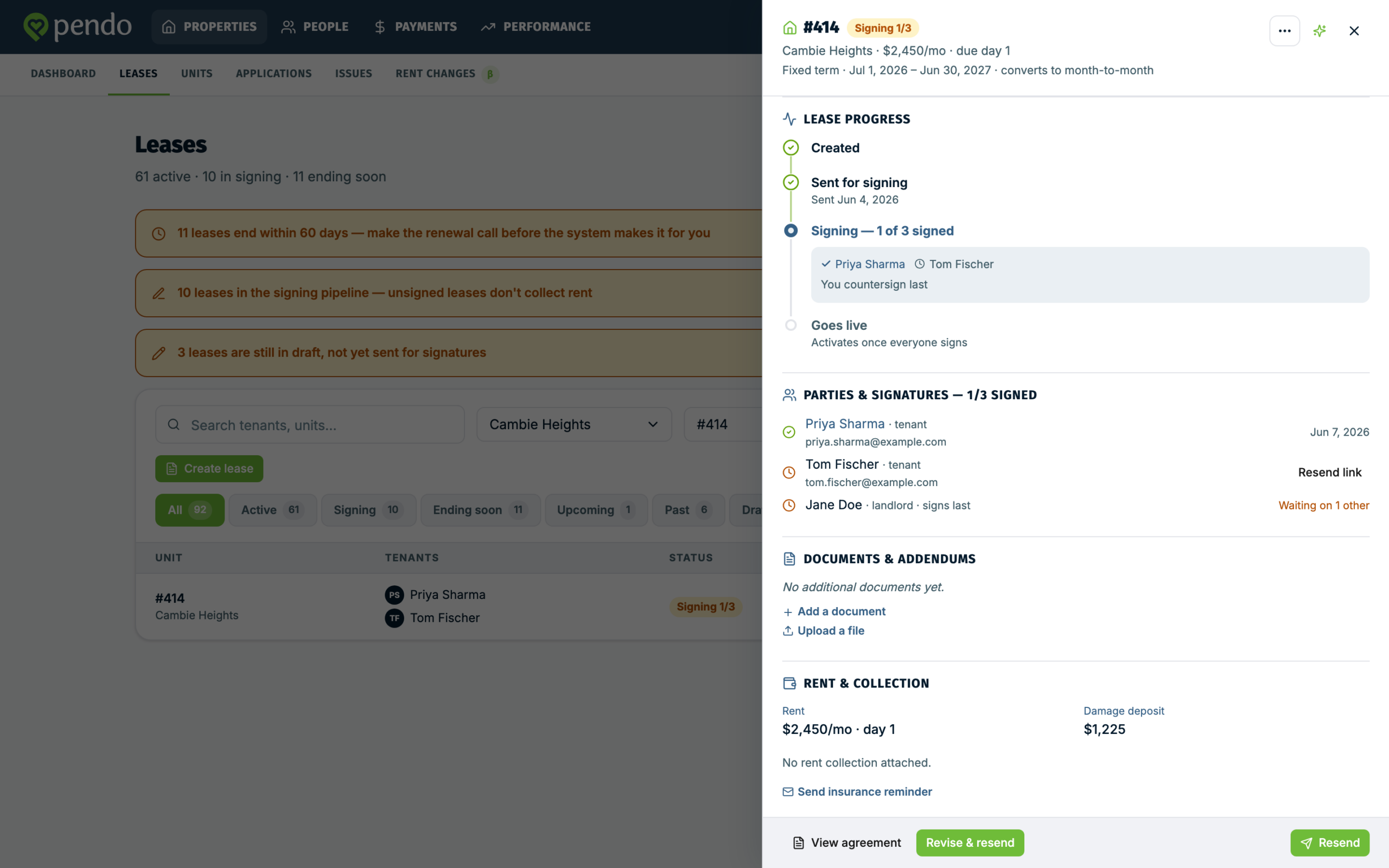
Open the lease. Lease progress walks four stages: Created, Sent for signing, then a signing stage showing how many of the parties have signed, which turns into Signed by everyone once it is done, then Goes live. Parties & signatures lists every person and marks who has signed.
Resend link on a row and Resend to unsigned at the bottom do the same thing: both re-email every party who has not signed yet. There is no way to nudge one person on their own. Pendo confirms how many invitations went out, and tells you if one could not be delivered.
If you have corrected someone's email in People since you sent the lease, their row shows both addresses, Saved lease email and Current People email, with a line saying which one a resend will use. While nobody has signed, a resend goes to the corrected address. Once somebody has signed, a resend still uses the address saved on the lease, and switching it takes Revise & resend.
One exception: on an older lease that somebody has already signed, a resend can be refused. Troubleshooting sending and signing covers what to do.
Countersigning #
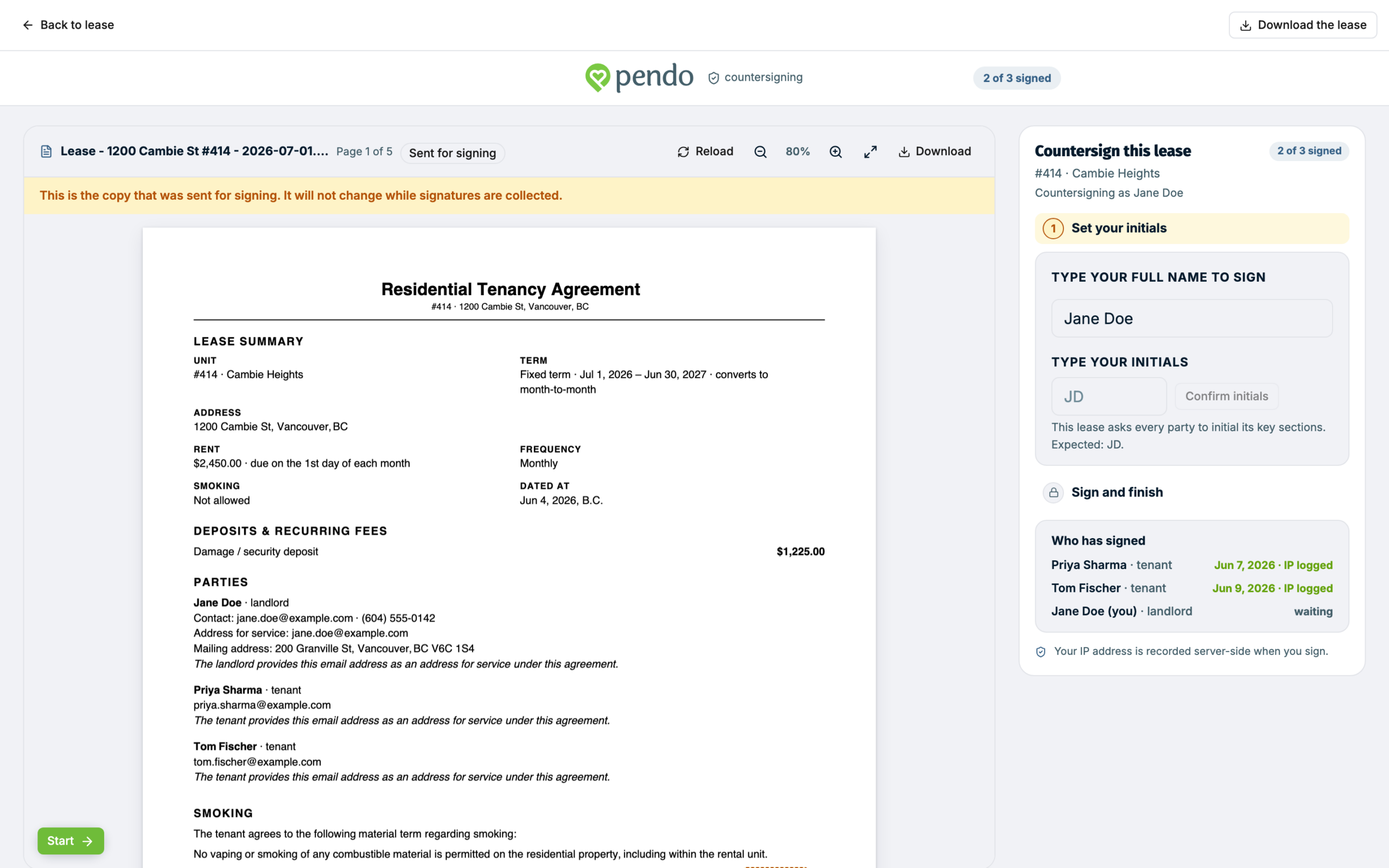
You always sign last. When everyone else is done, the lease shows Your signature is all that's left with a Sign now button.
- Click Sign now. The lease agreement opens with the signing steps beside it.
- Read the agreement. It is the same document everyone else signed, and Download the lease is there if you want a copy first. On an older lease that was not sent as a PDF, that button reads Print.
- If this lease asks for initials, check your name, type your initials, and click Confirm initials. Pendo places them in every initials box for you.
- Add your signature: draw it, or switch to Type your name and type it.
- Click Sign and finish.
By signing you agree that the electronic signature is binding and that you have read the agreement. The date and your IP address are stamped when you sign. The lease is then fully signed and goes live on its start date.
On a lease created in Classic, Sign now opens a shorter dialog instead: your name, your initials if asked, your signature, and a Sign lease button. It does the same job.
Signed, but not started yet #
A lease that everyone has signed but whose start date has not arrived sits at Upcoming. Pendo says so plainly: Signed and ready, with the start date and a note that nothing needs you until then. That is the whole state. There is nothing to do and nothing has gone wrong.
One thing does need you once the lease starts: a lease does not collect rent by itself. When the lease becomes Active and no rent collection is attached, it says No rent collection attached and offers Set up PendoPay. That prompt appears once the lease is Active, not while it is Upcoming, so check back on the start date.
Getting your signed lease #
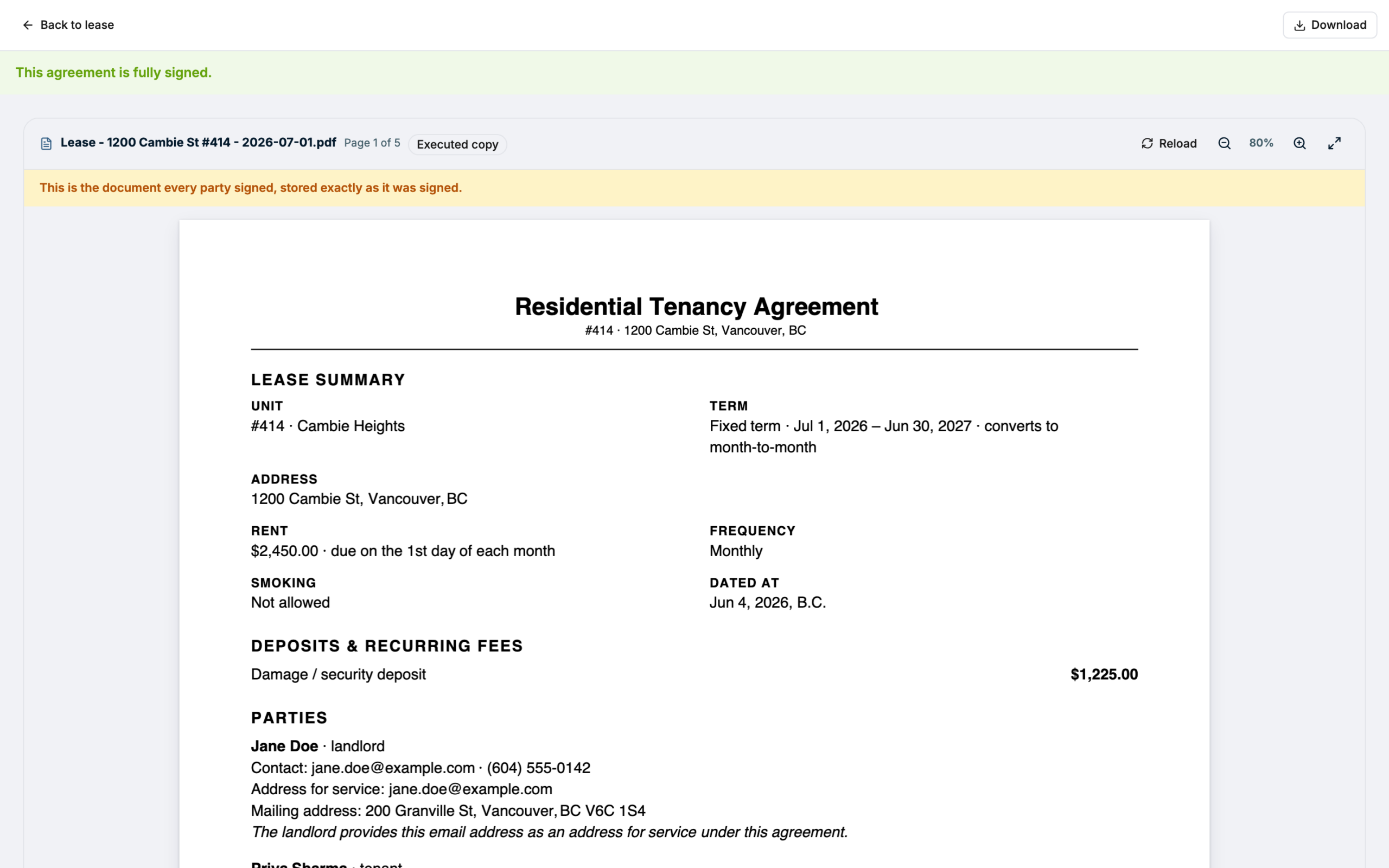
Open the lease from the Leases tab and use View agreement. The signed lease opens as a PDF, with every signature and set of initials on it. Click Download to save the file. Download lease, in the three-dot menu at the top right of the lease, does the same thing.
The signed PDF usually takes a moment to produce after the last signature. Open the lease in that moment and you see The signed lease is being prepared; use Check again. If you ever see The signed lease couldn't be produced, the signatures are safe and nothing is lost. Contact us and we will help you get the signed document.
On an older lease that was not signed as a PDF, the same screen offers Print instead. Use your browser's print dialog, and choose Save as PDF there to keep a file.
The signed copy email #
When you countersign, Pendo emails the signed lease to everyone on it. The PDF is attached, and the email also has a link to open it online. It goes to every tenant and every named owner who has an email address, to you, and to a delegated signer if the lease names one.
Nothing goes out to a tenant mid-signing. A tenant who signs while others are outstanding gets no email at that point. Your side tracks the progress. Tenants hear from Pendo again once everything is signed, when the signed copy lands.
On an older lease that was not signed as a PDF, that email carries the link only, with nothing attached. It goes to the tenants and owners who have an email address, to you when lease notifications are on, and to the invited account users it concerns.
Resending, and revising #
Two different things, and the difference matters.
Resend sends the same signing link again. Older emails carry that same link, so they keep working. Use it when a tenant never got the email or cannot find it. The one exception is a corrected email address: that person gets a fresh link and their earlier one stops working.
Revise & resend rebuilds the lease, discards the signatures collected so far, issues fresh links, and stops the old ones working. It is offered once somebody has signed, or when someone has declined. Before that the lease offers Edit lease, which changes the lease in place and leaves the existing links working. The exception is the same as for a resend: someone whose email address was corrected gets a fresh link, and their earlier one stops working.
If a lease is terminated, or its term runs out, before everyone has signed, it can no longer be signed. Its links open a page saying the lease has ended. A lease that was fully signed first is not affected: its links keep opening the signed lease.