This article covers Pendo Rent 2.0 screens. Which screens a lease opens depends on the lease itself, not your account switch. Not sure which you're looking at? See: Which version am I looking at?
Pendo schedules a rent change and applies it on the date you pick. Read the next section first, it is the part people get caught by.
What Pendo does, and what it does not #
Pendo schedules the change, holds it on the lease, and applies it on its effective date. PendoPay collects the new amount from then on.
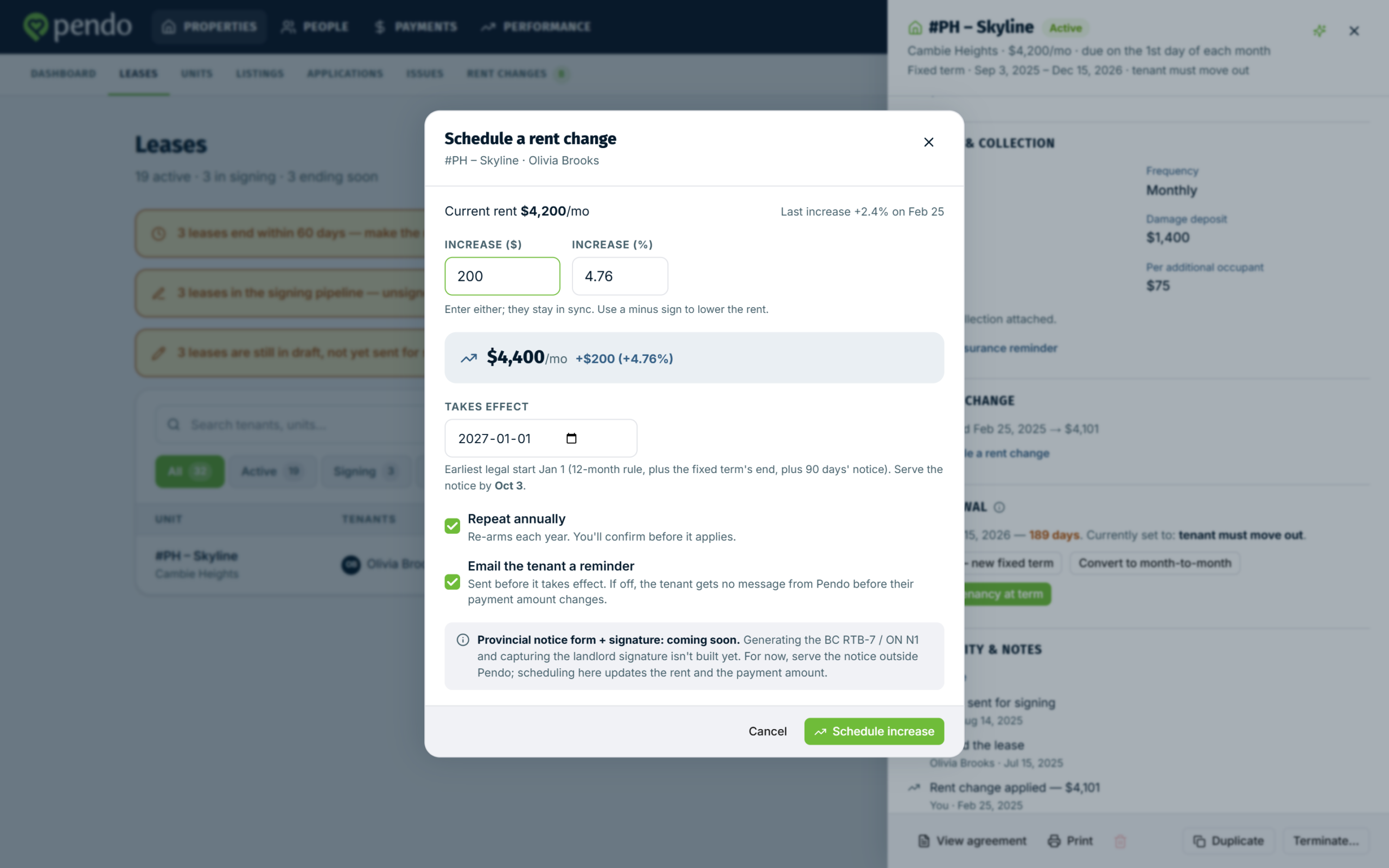
Pendo does not produce or serve the provincial rent increase notice. In BC that is the RTB-7, in Ontario the N1. You complete and serve that one yourself, outside Pendo. Scheduling the change here updates the rent and what PendoPay collects, nothing more.
Provincial rules on how much and how often you can raise rent are outside this article.
Scheduling a change #
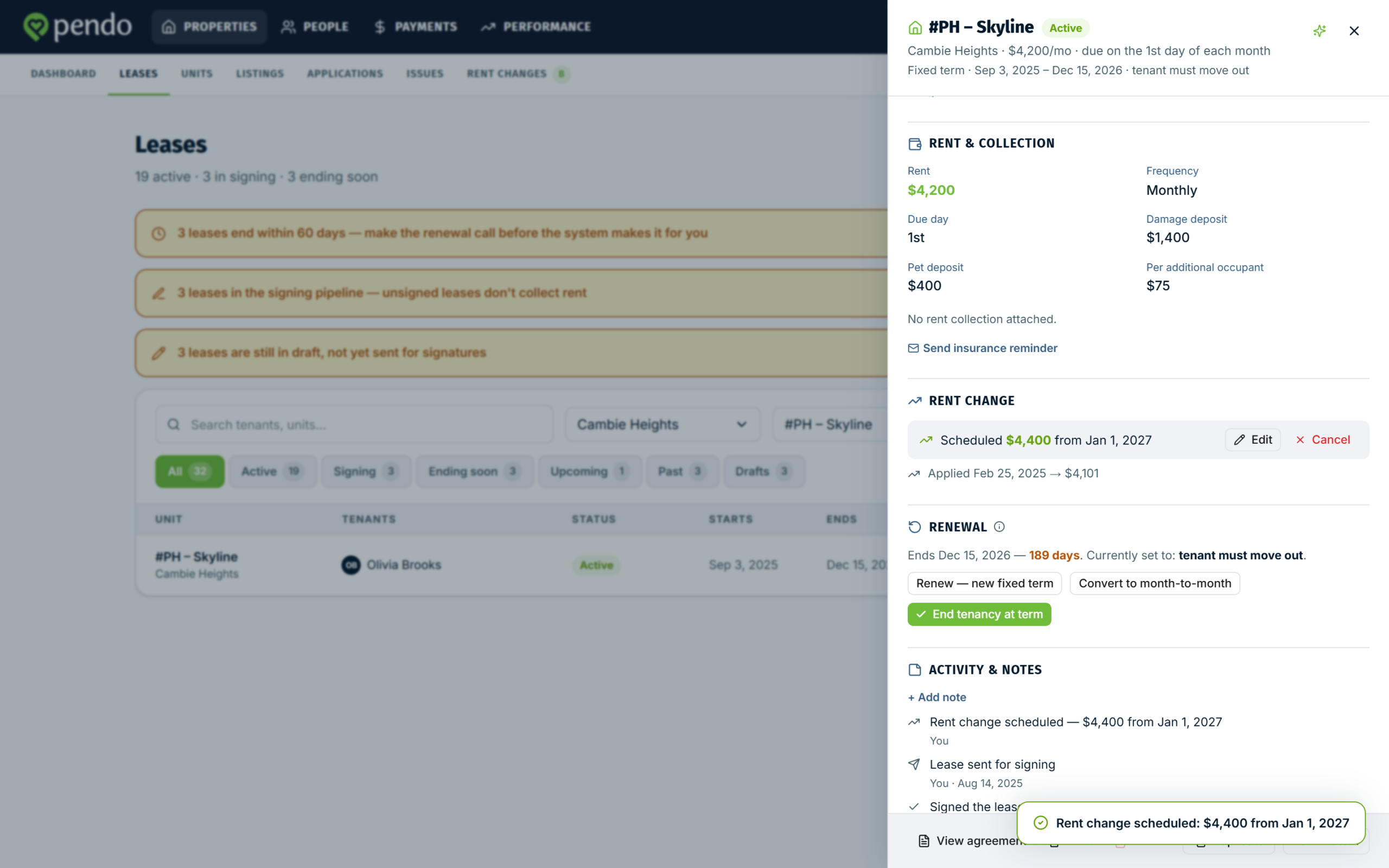
- Open the lease and click + Schedule a rent change. On a lease that has had one before, it sits under a Rent change heading.
- Enter the amount in Increase ($) or Increase (%). The two stay in sync, so fill in either. The new monthly rent is calculated as you type.
- Set Takes effect. For an increase, Pendo fills in the earliest date it will accept and the date to serve your notice by. Pick a later one if you want.
- Choose your options. Both start switched on, and Repeat annually is not offered on a decrease. Repeat annually re-arms the same change every year and Pendo applies it automatically. There is no confirmation step and nobody asks you first, so you must still serve next year's notice yourself. Switch it off if you do not want it repeating. On a fixed-term lease it stops once the next increase would fall past the end of the term. Email the tenant a reminder gives them a heads up.
- Click Schedule increase.
Lowering the rent #
Type a negative value in either field. Pendo switches to a decrease and the button becomes Schedule decrease. A decrease is not held back the way an increase is, but it still needs a Takes effect date later than today. Earliest is tomorrow.
One catch: Pendo fills in today for a decrease, and it will not accept today. Move the date forward at least one day, or the save fails.
What your tenant is told #
Leave Email the tenant a reminder on and Pendo emails them before the change takes effect, copying you. Turn it off and Pendo sends nothing, so their payment amount changes on the day.
The reminder goes out 90 days before the effective date. Schedule a change closer in than that and it is picked up on the next run, so the reminder lands shortly after you schedule it.
That email is a courtesy from Pendo. It is not legal service of your notice.
When it takes effect #
On the date in Takes effect. Nothing to do on the day. Until then the lease shows the change as scheduled, and afterwards as applied history.
Changing or cancelling a scheduled change #
On the lease, the scheduled line carries Edit and Cancel.
Edit reopens the window with everything filled in. Cancel asks you to confirm, then removes it. The rent stays where it is, and you can schedule a new one whenever.
Once a change has been applied you cannot cancel it. Schedule another to move the rent again.