
This article covers Pendo Rent 2.0 screens. Which screens a lease opens depends on the lease itself, not your account switch. Not sure which you're looking at? See: Which version am I looking at?
What Pendo Rent 2.0 is #
Pendo Rent 2.0 is Pendo rebuilt to be easier to use: cleaner screens, the information you need in one place, and fewer clicks for the jobs you do every day. Same account, same data, new screens. We are moving the product across one area at a time instead of changing everything on one day. Properties, Units and People moved first; Leases and rent changes have now joined them. Each area is turned on separately, so your account may not have all of them yet.
Everything else keeps the screens you use today: applications, payments and the PendoPay screens, tenant screening, reports, settings, issue tracking, and inspections. Your data is the same data, in the same account. Nothing is deleted and nothing is moved out.
We are rebuilding Pendo one area at a time, so seeing a mix of new and Classic screens is normal. Anything that has not moved yet keeps the Classic screens you use today, and you will keep seeing those until everything has been converted over. There is nothing you need to do in the meantime.
What the new experience gives you #
The new areas share one design, so once you have learned one screen you have learned them all. A few things you will notice everywhere:
- Your day at a glance. Lists lead with what matters: clear status badges on properties, units, people and leases, so you can see where things stand without opening anything.
- You never lose your place. Click a lease anywhere (the lease list, a property, a unit, a person) and its details open in a panel beside what you were doing, instead of dragging you off to another page.
- Search as you type. Properties, units, people and leases all filter as you type.
- Actions where you need them. Properties and units carry a quick-actions rail: Add Lease, Add Tenant, Collect Rent, Send Notice, Screen Applicant and more, one click from where you are.
- It works on your phone. The new screens resize properly to a phone instead of forcing the old fixed-width desktop layout.
A tour of the new areas #
Properties #
Your whole portfolio on one dashboard. The numbers sit on top (total units, occupied, monthly revenue and open issues) and your properties sit below as cards you can search, view as a grid or a list, and filter down to just the vacancies.
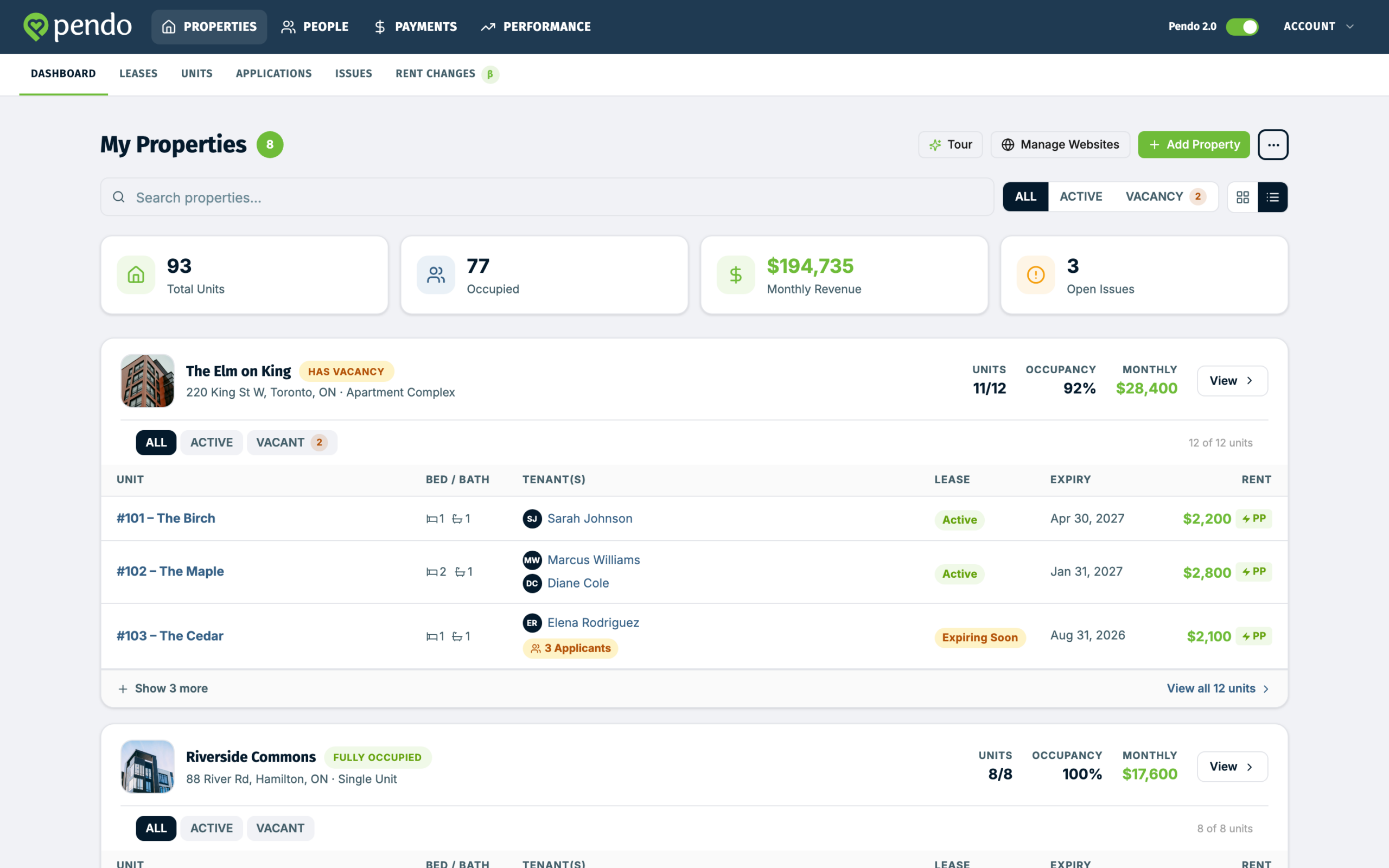
Open a property and everything about it is on one page: photos, a needs-attention bar for anything waiting on you, units and tenants, issues, rent and payments, a cashflow chart and recent activity, with the quick-actions rail alongside.
Units #
Every unit gets its own page too: the current lease, lease history, rent and payments, photos, features and the unit's own activity trail. And depending on your plan, the Units tab shows every unit across all your properties in one sortable list, with search, status counts and a property filter.
People #
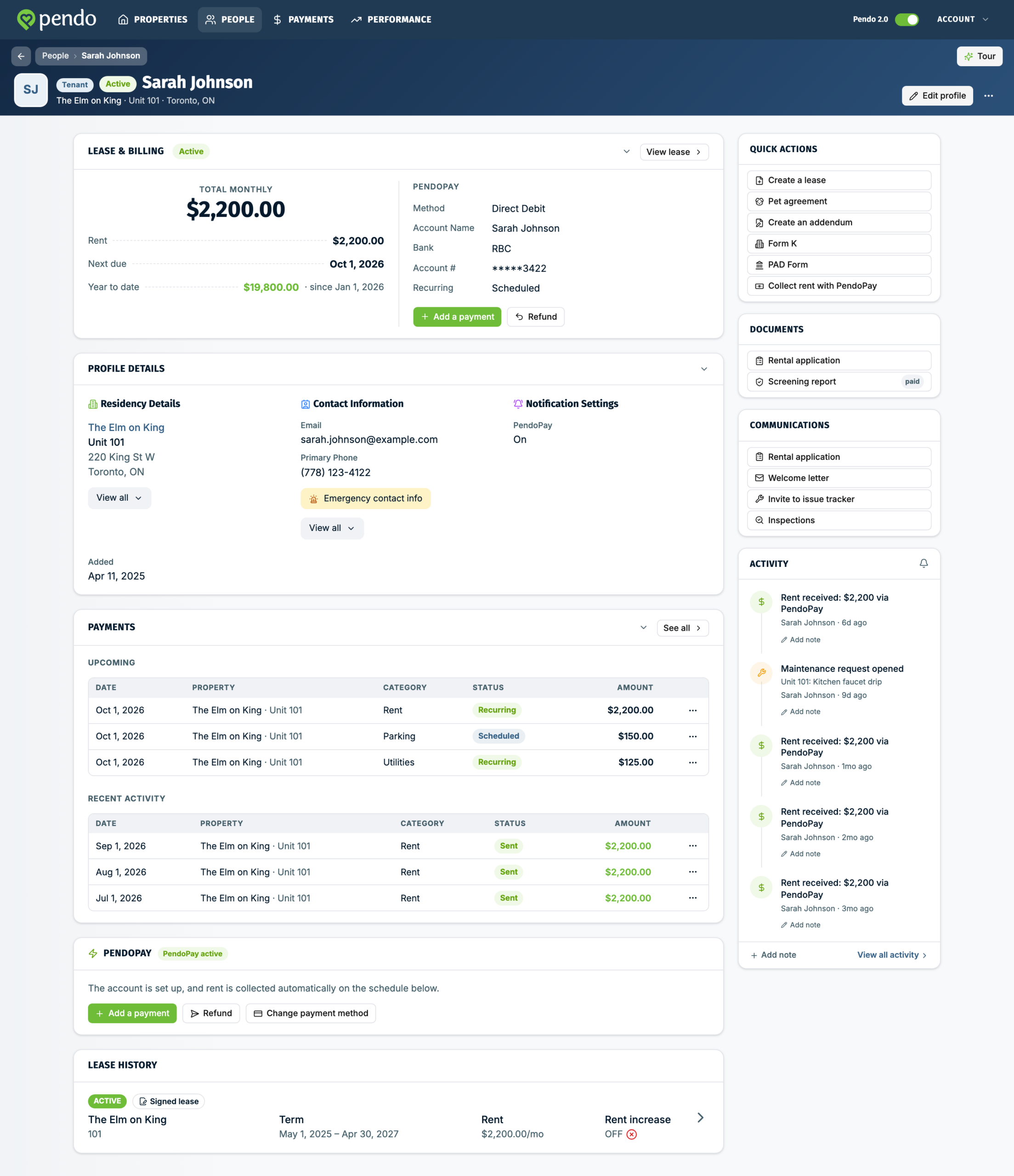
Everyone you deal with in one list: leads, applicants, tenants, owners, vendors and building managers, each with their own tab, plus search as you type.
Open a person and the whole relationship is on one page, tailored to their role: contact details, their current lease, payments and PendoPay details, lease history and a full activity feed.
Leases and rent changes #
The newest area, and the deepest change. One thing to know first: a lease opens the screens it was made in. A lease created on Pendo Rent 2.0 opens the new screens; a lease made before that keeps opening the Classic screens, no matter what your account switch says. The five second check is in Which version am I looking at?
What changed, at a high level:
- One lease list. Every lease in one place with its state at a glance: drafts, out for signing, active, signed but not started yet, and ending. Start here: Creating and sending a lease
- A guided setup with e-signing built in. Creating a lease walks through property, people, terms and documents, with a full review before anything goes out. Your tenant signs online, you countersign, and the executed lease stays on the lease afterwards. See After you send a lease for signing and What your tenant sees
- Documents live on the lease. Addendums (including rent amendments), pet agreements, the welcome letter and notices all attach to the lease they belong to. See Ending a lease and companion documents
- Rent changes are scheduled, not retyped. Set the new amount and the date; Pendo applies it and adjusts collection. There is also one Rent changes screen that sorts your leases into eligible, upcoming, scheduled and applied. See Rent changes
- End of term is a decision, not a surprise. Renew for a new term, roll month to month, or end the tenancy, all from the lease. See Renewing a lease
- Turnover has an order that works. Terminating warns you about payment schedules before you confirm, and there is a path for bringing the next tenant in. See Before you terminate a lease and Replacing a tenant in a unit
If your tenant has questions #
Two of the guides are written for tenants, so you can send the link instead of explaining:
And when a lease will not send or sign, the short answers are in Troubleshooting sending and signing
Looking for something? Here is where it is now #
- A PDF of the signed lease. There is no download button. Open the lease, choose View agreement, then Print, or use your browser's Save as PDF. A countersigned copy also goes out by email, as a link rather than an attachment.
- The rent increase notice. Pendo schedules and applies the rent change itself. It does not produce or serve the provincial notice (BC RTB-7, Ontario N1). You complete and serve that one yourself, outside Pendo.
- A termination notice. Ending a lease on the new screens is a Pendo record, not a legal notice. In BC, serve official RTB notices through Send Notice, in the quick actions on the property or the unit.
- A signing link that stopped working. A plain resend sends the same link again, so older emails keep working. Revising the lease is what creates fresh links and stops the old ones.
Do I have to switch? #
If your account has the switch, no. There is no deadline, and Classic keeps working. We will move everyone over eventually, but no date is set, and nothing is lost either way: your existing leases keep the screens they always had.
The switch lives at the top right of the header, shown as "Pendo 2.0". Account owners see it; staff do not, and some accounts do not have it at all. Flipping it changes the default screens for everyone on the account, not just for you. Accounts that started on Pendo Rent 2.0 do not have a switch.

Full details: Switching between Classic and Pendo Rent 2.0
All the Pendo Rent 2.0 guides #
Get oriented
Create and sign
- Creating and sending a lease
- After you send a lease for signing
- What your tenant sees
- Troubleshooting sending and signing
For your tenant
During the tenancy
Renewal and turnover
- Renewing a lease
- Before you terminate a lease
- Ending a lease and companion documents
- Replacing a tenant in a unit
These guides cover leases end to end. Guides for the other areas are on the way.